# What is ScamShield?

ScamShield is a mobile application that defends against scams, and was developed by Open Government Products in collaboration with the Singapore Police Force (SPF) and the National Crime Prevention Council (NCPC).

<table data-card-size="large" data-view="cards"><thead><tr><th></th><th></th><th></th><th data-hidden data-type="files"></th></tr></thead><tbody><tr><td><strong>Check for Scams </strong><mark style="color:blue;"><strong>(NEW)</strong></mark></td><td>Not sure if something is a scam? Use the new check feature on ScamShield to validate if a message, phone number or weblink is suspicious. <a href="/pages/l4Hs6mtA99U4X2M3AaSb">Learn more.</a></td><td></td><td><a href="/files/Hx4vRrrhakllZ3N9w17M">/files/Hx4vRrrhakllZ3N9w17M</a></td></tr><tr><td><strong>Submit a Scam Report </strong><mark style="color:blue;"><strong>(ENHANCED)</strong></mark></td><td>Submit a Scam Report via ScamShield and keep our community safe. <a href="/pages/ASFIKQKdKIk2a4EoOPWZ">Learn more.</a></td><td></td><td><a href="/files/e96mmC2Y9INF9weFYFc3">/files/e96mmC2Y9INF9weFYFc3</a></td></tr><tr><td><strong>Call Blocking</strong></td><td>ScamShield blocks calls from numbers that are deemed suspicious by the Singapore Police Force. <a href="/pages/yQSsWcvwR1c9cuqREAS4">Learn more.</a></td><td></td><td><a href="/files/qexc6XtiJTCVHSbFJ1H3">/files/qexc6XtiJTCVHSbFJ1H3</a></td></tr><tr><td><strong>SMS Filtering</strong></td><td>ScamShield filters out SMSes from numbers that are deemed suspicious by the Singapore Police Force. <a href="/pages/hWldzu0eIzVE13Gk6rL8">Learn more.</a></td><td></td><td><a href="/files/i6vw91qyq6MYnl5YxpIK">/files/i6vw91qyq6MYnl5YxpIK</a></td></tr></tbody></table>

<table data-view="cards"><thead><tr><th></th></tr></thead><tbody><tr><td><a href="/pages/o8drlGcf4sO0R5fvdDr7"><mark style="color:$primary;">What's New on ScamShield?</mark></a></td></tr><tr><td><a href="/pages/gElBChTssnDI3v9dhhnc"><mark style="color:$primary;">Getting Started with ScamShield</mark> </a></td></tr><tr><td><a href="/pages/rtSiWoRX4HrdYKOIC8HG"><mark style="color:$primary;">Need help? Get in touch with the team!</mark></a></td></tr></tbody></table>


# Why us?

ScamShield prioritises your safety and peace of mind, while empowering users to work together as a community to tackle scams. Here's why you should choose us:

1. <mark style="color:blue;">**Collaboration with Anti-Scam Authorities**</mark>: ScamShield collaborates with agencies working to combat scams. Together we build a robust algorithm that validates if a message, call or link could potentially be a scam. ScamShield also allows users to submit scam reports that will be sent to the Singapore Police Force. If the information in the scam report is deemed suspicious by the police, ScamShield will block the associated phone numbers and links.
2. <mark style="color:blue;">**Free of Charge**</mark>: ScamShield is entirely free and empowers individuals in the community to stay protected without any financial barriers.
3. <mark style="color:blue;">**Tailored to Singapore**</mark>: Designed specifically to tackle scams prevalent in Singapore by creating a unified platform to educate residents on the scam landscape in Singapore.
4. <mark style="color:blue;">**AI-Powered**</mark>: ScamShield leverages cutting edge technology to detect and categorise various types of scams while keeping your [safety and privacy](broken://pages/Y3anxz0SBCo4gmBmi4Gp) in mind.

### The scam landscape is constantly evolving

Based on [*Mid-Year Scams and Cybercrime Statistics 2023*](https://www.police.gov.sg/-/media/9B26F6C9613B4760AC78D15EBCDB4048.ashx), in the first half of 2023 alone, $334.5 Million was the total amount lost to scams in Singapore.

Job scams, e-commerce scams, fake friend call scams, phishing scams and investment scams were the top five scam types in the first half of 2023. These made up 83.8% of all scam cases reported during that period.

29.4% of scam cases involved contact via messaging platforms, compared to 23.6% in the same period last year, with about 70.5% of the cases via WhatsApp, and 24.1% via Telegram.

To keep up with the rapid changes in the nature of scams, we must work together to fortify our defence against scammers.


# Help, I've been scammed!

If you suspect you have fallen for a scam, here are some next steps you can take:

* [File a police report](https://eservices1.police.gov.sg/phub/eservices/homepage)
* Get advice from the officers at the National Crime Prevention Council
  * ScamShield Helpline: 1799
  * <https://www.ncpc.org.sg/contact-us/>


# System Requirements

<details>

<summary>Android</summary>

* For call blocking, the ScamShield app is compatible with Android 10 and above

</details>

<details>

<summary>iOS</summary>

* For call blocking, the ScamShield app is compatible with iOS 10.0 and above
* For SMS filtering, the ScamShield app is compatible with iOS 11.0 and above

</details>

{% hint style="info" %}
Please note that checking or reporting a scam does not have any system limitations.
{% endhint %}


# Download ScamShield

<details>

<summary>Android</summary>

ScamShield is available for download on [Google Playstore](https://play.google.com/store/apps/details?id=sg.gov.scamshield\&hl=en_SG\&pli=1).

</details>

<details>

<summary>iOS</summary>

ScamShield is available for download on [Apple App Store](https://apps.apple.com/sg/app/scamshield/id1497144087).

</details>

{% hint style="danger" %}
Please do not download ScamShield from unofficial links or sources outside of your mobile app or play store.
{% endhint %}


# Setup Call Blocking

The ScamShield app will only block calls from phone numbers that are suspected as scam by authorities. ScamShield **will not block calls** from known phone numbers in your contacts. Phone numbers will only be blocked by authorities if they are deemed suspicious.

To find out how to setup your call blocking permissions, please refer to the following links:

{% content-ref url="/pages/Y414ks1HWiOqAq5rJoK9" %}
[Setup call blocking on iOS](/getting-started/setup-call-blocking/setup-call-blocking-on-ios)
{% endcontent-ref %}

{% content-ref url="/pages/58OweFpt9wru2L48lf63" %}
[Setup call blocking on Android](/getting-started/setup-call-blocking/setup-call-blocking-on-android)
{% endcontent-ref %}


# Setup call blocking on iOS

{% tabs %}
{% tab title="Interactive Demo (iOS)" %}
{% @arcade/embed flowId="bWyr55dDoN5GZLoo2TXB" url="<https://app.arcade.software/share/bWyr55dDoN5GZLoo2TXB>" %}
{% endtab %}

{% tab title="Step By Step Guide (iOS)" %}

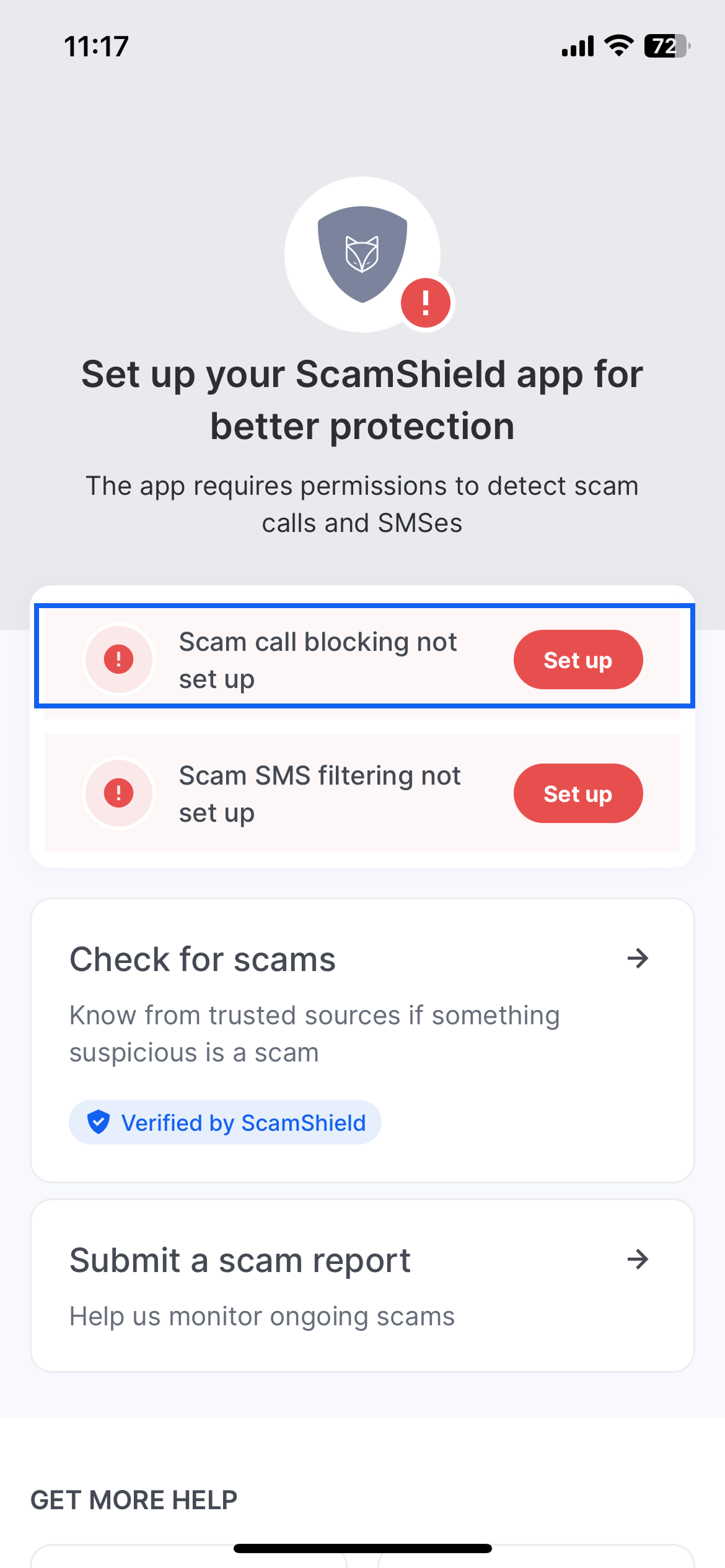
Step 1: Launch ScamShield. Click on "Set up" next to 'Scam call blocking not set up'.

<figure><img src="/files/A1jcw6HKeEnxf0LTbp3m" alt="" width="375"><figcaption></figcaption></figure>

<br>

\
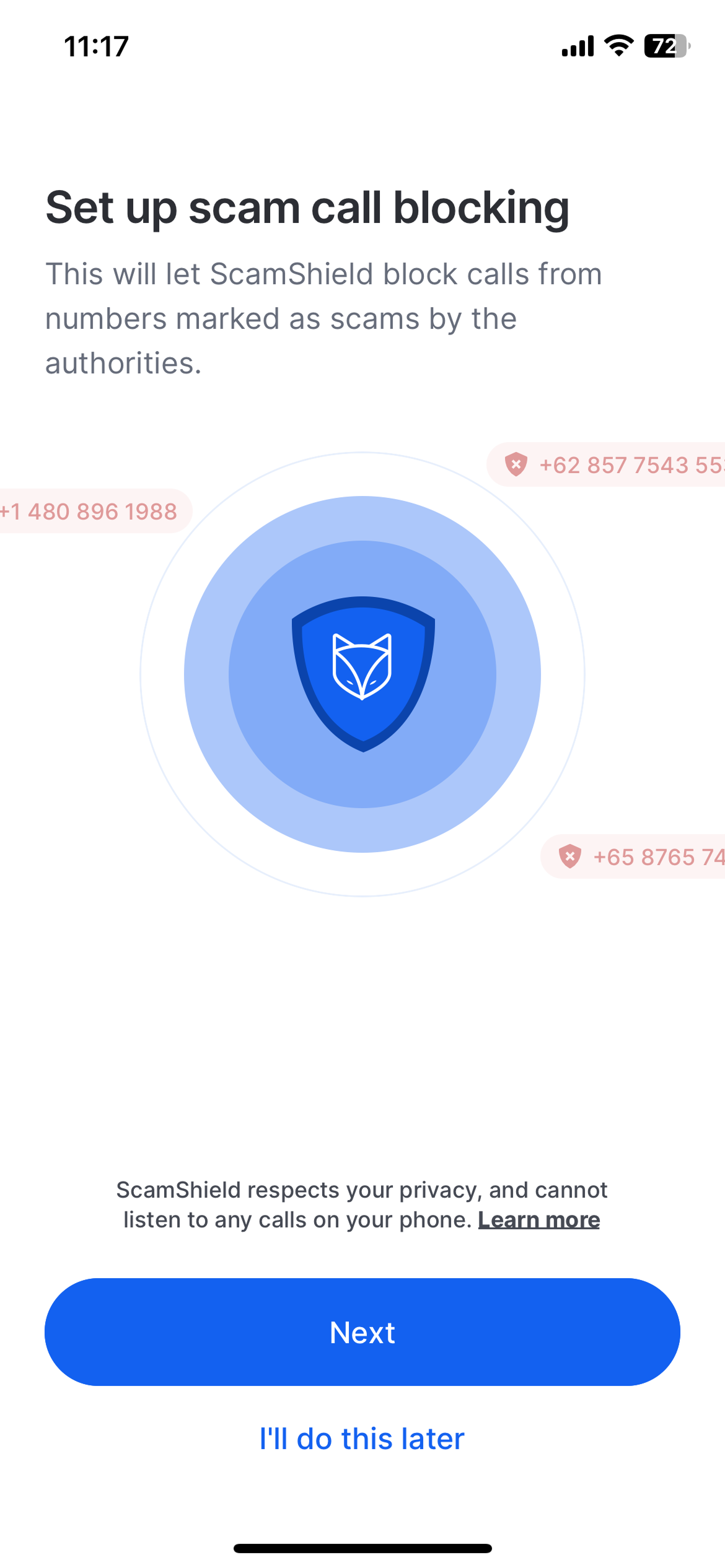
Step 2: Click 'Next' to proceed.
<figure><img src="/files/ptZF3IW9PmNjgqsIdhTh" alt="" width="375"><figcaption></figcaption></figure>

\
Step 3: Click on 'Settings' to launch the Settings app on iOS.

<figure><img src="/files/3ZYN9jtXUUWmbQZCt1yO" alt="" width="375"><figcaption></figcaption></figure>

\
Step 4: Click on 'Apps'.&#x20;

Please note that for iOS 17 and below, you can skip this step. Your Settings app will directly show a list of apps and you can scroll down and select 'Phone'.

<figure><img src="/files/L1jNx85NKG0CyEOtVbFU" alt="" width="375"><figcaption></figcaption></figure>

\
Step 5: Scroll down and select 'Phone' > Click on 'Call Blocking & Identification'.

<figure><img src="/files/l30DQKSY7hMc7a8ogx0j" alt="" width="375"><figcaption></figcaption></figure>

Step 6: Enable the toggle next to 'ScamShield'.

<figure><img src="/files/wHXZ4sJrOvARzA23qEJs" alt="" width="375"><figcaption></figcaption></figure>

<br>

Step 7: And you're all setup!

<figure><img src="/files/Hmk2w0OejJmVPosdZ2jS" alt="" width="375"><figcaption></figcaption></figure>
{% endtab %}
{% endtabs %}


# Setup call blocking on Android

{% tabs %}
{% tab title="Interactive Demo (Android)" %}
{% @arcade/embed flowId="8NkIlYl6iiQDm5e0iWtd" url="<https://app.arcade.software/share/8NkIlYl6iiQDm5e0iWtd>" %}
{% endtab %}

{% tab title="Step-by-step Guide (Android)" %}
Step 1: Launch ScamShield. Click on "Set up" next to 'Scam call blocking not set up'.

<figure><img src="/files/UxKPn7ZyrGr7jZ8dxswP" alt="" width="375"><figcaption></figcaption></figure>

Step 2: Click 'Next' to proceed.

<figure><img src="/files/jwYJQ1YFzU7m3h0SPwQA" alt="" width="375"><figcaption></figcaption></figure>

Step 3: You will be given a preview of the setting. Click Next to proceed.&#x20;

<figure><img src="/files/IxQLLYmL5bWJuUwfeVD0" alt="" width="375"><figcaption></figcaption></figure>

Step 4: Select 'ScamShield' in the pop-up > Click 'Set as default'. This will set ScamShield to be your **default caller ID & spam app**.&#x20;

<figure><img src="/files/ChqzRZ1jM8gjCGjY1zqa" alt="" width="375"><figcaption></figcaption></figure>

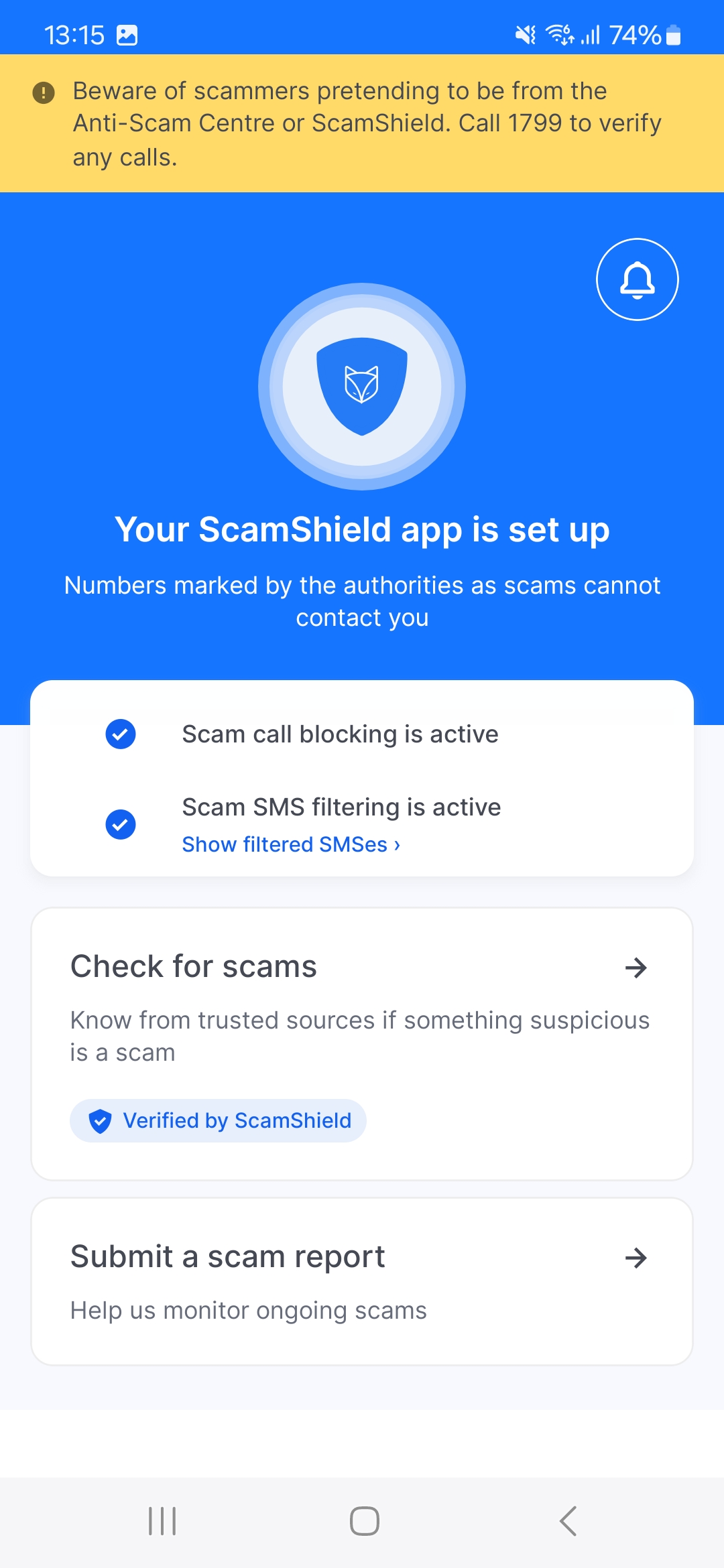
Step 5: In your ScamShield home screen, you will be able to see call blocking is now active.

<figure><img src="/files/rMTr13HAGGyBJrlQ5IqZ" alt="" width="375"><figcaption></figcaption></figure>
{% endtab %}
{% endtabs %}


# Setup SMS Filtering

The ScamShield app will only filter SMSes on iOS or notify SMSes on Android when:

1. The sender ID or phone number of the message is suspected as scam by authorities. Phone numbers will only be blocked by authorities if they are deemed suspicious.
2. The message content is detected as potentially a scam by the ScamShield AI classifier.

To find out how to setup your SMS Filtering permissions, please refer to the following links:

{% content-ref url="/pages/U4lCSAifP55jVEBjONu7" %}
[Setup SMS Filtering on iOS](/getting-started/setup-sms-filtering/setup-sms-filtering-on-ios)
{% endcontent-ref %}

{% content-ref url="/pages/2SVCVWxHOyvwkrll4pod" %}
[Setup SMS Filtering on Android](/getting-started/setup-sms-filtering/setup-sms-filtering-on-android)
{% endcontent-ref %}


# Setup SMS Filtering on iOS

{% tabs %}
{% tab title="Tutorial" %}
{% @arcade/embed flowId="edYvlwQODiEkRG3iqFKx" url="<https://app.arcade.software/share/edYvlwQODiEkRG3iqFKx>" %}
{% endtab %}

{% tab title="How-to Guide ( below iOS 26)" %}
Step 1: Click on "Set up" next to SMS filtering to get started.

<figure><img src="/files/K4D8T5V544H50yxd3s4i" alt="" width="375"><figcaption></figcaption></figure>

Step 2: Click 'Next' to proceed.

<figure><img src="/files/nW8UKRI7VqsUCrscWqis" alt="" width="375"><figcaption></figcaption></figure>

Step 3: Click on "Settings > Messages".&#x20;

Please note that for iOS 17 and below, you can skip this step. Your Settings app will directly show a list of apps and you can scroll down and select 'Messages'.

<div data-full-width="true"><figure><img src="/files/MCy5UL9WY9oSYPk7x7X6" alt="" width="375"><figcaption></figcaption></figure></div>

Step 4: This will launch the Settings app. Scroll down and click on 'Apps' > 'Messages'.

<figure><img src="/files/f5gSSGmSf0vByFgfXGZ5" alt="" width="375"><figcaption></figcaption></figure>

<p align="center"> </p>

Step 5: After clicking on Messages, scroll down and click on Unknown & Spam.&#x20;

<figure><img src="/files/pEwHcgeQwvTmsGFiPACO" alt="" width="375"><figcaption></figcaption></figure>

Step 6: Toggle "Filter Unknown Senders" if it is disabled.\
\
Click on ScamShield under 'SMS Filtering' > Enable.

Please note that if you have other anti-virus or anti-scam apps that allow you to filter SMSes, you cannot enable more than one app under this feature. This is an iOS limitation.

<figure><img src="/files/eSetowqK1fhDBMM28HMW" alt="" width="375"><figcaption></figcaption></figure>

Step 7: ScamShield should now be enabled to filter SMSes.

<figure><img src="/files/sWx4mPWaZvys5XRZBG57" alt="" width="375"><figcaption></figcaption></figure>

Step 8: In your ScamShield home screen, you will be able to see SMS filtering is now active.

<figure><img src="/files/nBcdiGSIYF3C7gunh0W6" alt="" width="375"><figcaption></figcaption></figure>

To check for messages which have been filtered by ScamShield, you may check your Junk Messages inbox for SMSes tagged with a label called "Filtered by ScamShield".

<figure><img src="/files/fbweGT4eVeB2O6Xhh1aK" alt="" width="375"><figcaption></figcaption></figure>
{% endtab %}

{% tab title="How-to Guide (iOS 26 and above)" %}
Step 1: Go to your Message Settings.&#x20;

<figure><img src="/files/4BHacBQhKemMO6YbiCgV" alt="" width="375"><figcaption></figcaption></figure>

\
Step 2: Toggle on "Screen Unknown Senders".

<figure><img src="/files/NZXPPCieikAkzyWBGdvE" alt="" width="375"><figcaption></figcaption></figure>

Step 3: Click on "Text Message Filter".&#x20;

<figure><img src="/files/gMST2plmCmQ8PTI4aMVh" alt="" width="375"><figcaption></figcaption></figure>

Step 4: Click on "ScamShield".&#x20;

<figure><img src="/files/JFknbnVxJHkUCQmF84CY" alt="" width="375"><figcaption></figcaption></figure>

\
Step 5: Click "Use" on the pop-up that appears.&#x20;

<figure><img src="/files/EQbKZoVgoOv5e08dwjzn" alt="" width="375"><figcaption></figcaption></figure>

<figure><img src="/files/1vsBzjWTtkOKRM9ncovs" alt="" width="375"><figcaption></figcaption></figure>

Step 6: You should see this. You're all set!&#x20;

<figure><img src="/files/8T8c0BpqjLx6rI4RVV6I" alt="" width="375"><figcaption></figcaption></figure>
{% endtab %}
{% endtabs %}

## Setup SMS Filtering on Android


# Setup SMS Filtering on Android

{% tabs %}
{% tab title="Interactive Demo (Android)" %}
{% @arcade/embed flowId="cTM6o6sK7RYWSLNIsPwk" url="<https://app.arcade.software/share/cTM6o6sK7RYWSLNIsPwk>" %}
{% endtab %}

{% tab title="Step-by-step Guide (Android)" %}
Step 1: Click on "Set up" next to 'Scam SMS filtering...' to get started.

<figure><img src="/files/8q59kFR1KAfoBYUBXLAB" alt="" width="375"><figcaption></figcaption></figure>

Step 2: Click 'Next' to proceed.

<figure><img src="/files/o2jJ5usbgHK6lFKjf4Uk" alt="" width="375"><figcaption></figcaption></figure>

Step 3: Click 'Next' to proceed.&#x20;

*Please note that ScamShield will need all three of these permissions enabled to be able to filter SMSes successfully and notify you when an SMS is being filtered. ScamShield will not be able to send messages on your behalf or read any of your existing messages. Click* [*here*](/resources/help-center/your-privacy) *to read more about* [*Safety & Privacy*](broken://pages/Y3anxz0SBCo4gmBmi4Gp)*.*

<figure><img src="/files/rUMLXAiZoEbe66F11NzB" alt="" width="375"><figcaption></figcaption></figure>

Step 4:  Click "Allow" on all 3 settings to allow ScamShield to:&#x20;

1\) **Access your contacts** - this will allow ScamShield to only filter messages that are sent from unknown senders who are not in your contacts.

2\) **Send you notifications** - this will be used to alert users when an incoming scam message is detected.

3\) **Send and view messages** - this will allow ScamShield to view SMSes from unknown senders and evaluate if the message is a scam. ScamShield will not view SMSes from your saved contacts.

<figure><img src="/files/uJIuyAiPvCEKH8CR9Rim" alt=""><figcaption></figcaption></figure>

Step 7: In your ScamShield home screen, you will be able to see SMS filtering is now active.&#x20;

<figure><img src="/files/idLXzNqG29YYbSPX4Wbo" alt="" width="375"><figcaption></figcaption></figure>

Please note that ScamShield won't filter or delete these SMSes inside your Messages app. It will only show you the SMSes that are identified as potential scams. To view these SMSes, you may click on '<mark style="color:blue;">**Show filtered SMSes**</mark>'.
{% endtab %}
{% endtabs %}


# \[NEW] Setup Notifications

## <mark style="color:yellow;">**\[NEW]**</mark>**&#x20;Stay Updated on Your Scam Reports with Real-Time Notifications**

Whenever you report a suspicious number through the ScamShield app, you’ll now receive a push notification **once it’s verified and blocked** in our scam database.

This means more transparency and a faster feedback loop, so you know your report has helped protect others from falling prey to a similar scam.

## **How it works**

When a number you’ve reported has been marked as scam in our scam database, you will receive a notification on your phone if you’ve enabled push notifications for the ScamShield app. To do so, you will need to enable the notifications setting in the ScamShield app. Please refer to the following setup guides based on your mobile OS.

{% content-ref url="/pages/517N7QxzxmXVIx2R0GJQ" %}
[Setup Notifications on iOS](/getting-started/new-setup-notifications/setup-notifications-on-ios)
{% endcontent-ref %}

{% content-ref url="/pages/14gCnGlojJjf19N9LjHo" %}
[Setup Notifications on Android](/getting-started/new-setup-notifications/setup-notifications-on-android)
{% endcontent-ref %}

### 💬 **Frequently Asked Questions**

#### **1. Can I track the history of numbers I’ve reported?**

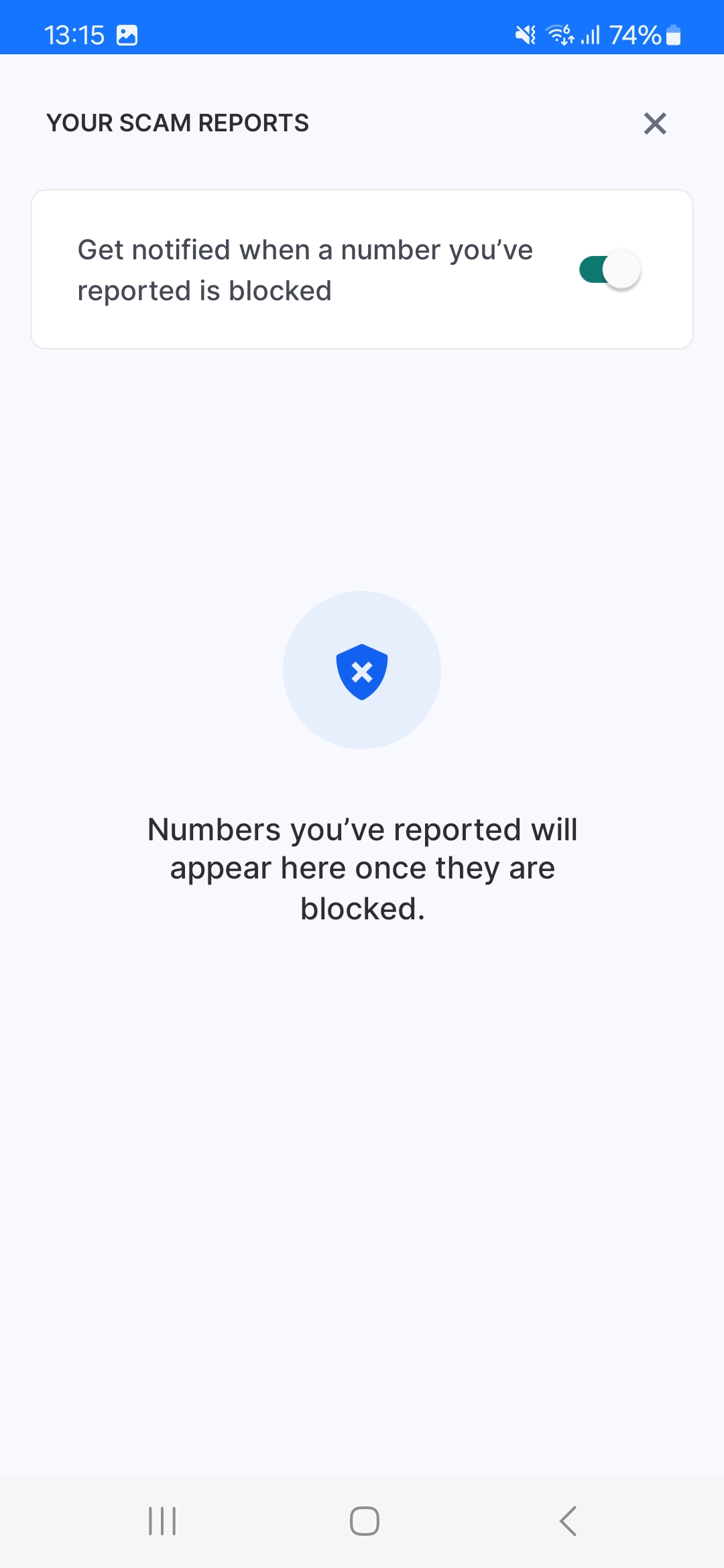
Yes. You will be able to see the full history of numbers you’ve reported that have been added to our blocklist in the ScamShield app under “Your Scam Reports” (when you click on the 🔔 icon on the top right corner).

#### **2. Can I see reports from other users?**

ScamShield doesn’t publicly display all user-submitted reports to protect privacy. However, if a number you encountered had been reported by others and has already been marked as a scam by the authorities, the ScamShield app will take action to protect you, provided you have your call blocking and SMS filtering permissions switched on. You may also check the number of reports for a specific phone number by using our Check for Scams feature.

#### **3. Why am I not notified for every report?**

Only reports that are **marked as scams** through our checks will trigger a push notification. This ensures the alerts you receive are reliable and meaningful.

#### **4. Will I be notified when scam numbers other people reported get blocked?**

No, you’ll only receive notifications when scam numbers that *you* reported get blocked. This way, we avoid sending too many alerts and help keep your notifications relevant and useful.

If you have any other questions, please refer to our [Help Center](https://ask.gov.sg/scamshield).


# Setup Notifications on iOS

{% tabs %}
{% tab title="Interactive Demo" %}
{% @arcade/embed flowId="FcoFQo4wnpH150xOipKg" url="<https://app.arcade.software/share/FcoFQo4wnpH150xOipKg>" %}
{% endtab %}

{% tab title="Step-by-Step Guide" %}
**Step 1: Click on the 🔔 icon in the top right hand corner of your screen.**

<div align="center"><figure><img src="/files/oZ5UWbgg8fIhXHcbLQKI" alt="" width="375"><figcaption></figcaption></figure></div>

**Step 2: Toggle this button on.**

<div align="center"><figure><img src="/files/NvI5tDk4aA2A4psZsPyo" alt="" width="375"><figcaption></figcaption></figure></div>

\
**Step 3: Click on "Go to ScamShield App Settings".**

<div align="center"><figure><img src="/files/99TFTyYWWfInBWvaeOYA" alt="" width="375"><figcaption></figcaption></figure></div>

**Step 4: Click on "Notifications".**

<figure><img src="/files/lLgfU9sVvrzHqb2CrfFk" alt="" width="375"><figcaption></figcaption></figure>

\
**Step 5: Toggle on "Allow Notifications".**

<figure><img src="/files/gwUtDN2u3plZuoY7DJ6F" alt="" width="375"><figcaption></figcaption></figure>

<figure><img src="/files/mMQraK4S7JMrRFOhhvjt" alt="" width="375"><figcaption></figcaption></figure>

\
**Step 6: Go back to the ScamShield app and click "I've done this".**&#x20;

<figure><img src="/files/4T7hWgVnc15dfji6zRCj" alt="" width="375"><figcaption></figcaption></figure>

\
**Step 7: You are now ready to receive notifications for your scam reports!**

<figure><img src="/files/RJ6TGU15ZgLhPUlS1cPh" alt="" width="375"><figcaption></figcaption></figure>

\
**Step 8: When the number you have reported has been added to our blocklist, you will receive a notification that looks like this:**

<figure><img src="/files/dSbG90vuRMcumXxsfbQL" alt="" width="375"><figcaption></figcaption></figure>

{% endtab %}
{% endtabs %}


# Setup Notifications on Android

{% tabs %}
{% tab title="Interactive Demo" %}
{% @arcade/embed flowId="rVcVwhncyYekpQFp8vKP" url="<https://app.arcade.software/share/rVcVwhncyYekpQFp8vKP>" %}
{% endtab %}

{% tab title="Step-by-Step Guide" %}
**Step 1: Click on the 🔔 icon in the top right hand corner of your screen.**

<figure><img src="/files/IvAaD2ltSbx0ikbtMgDK" alt="" width="375"><figcaption></figcaption></figure>

\
**Step 2: Toggle this button to allow notifications.**&#x20;

<figure><img src="/files/qRBtipjeKF9rPy4y11KD" alt="" width="375"><figcaption></figcaption></figure>

\
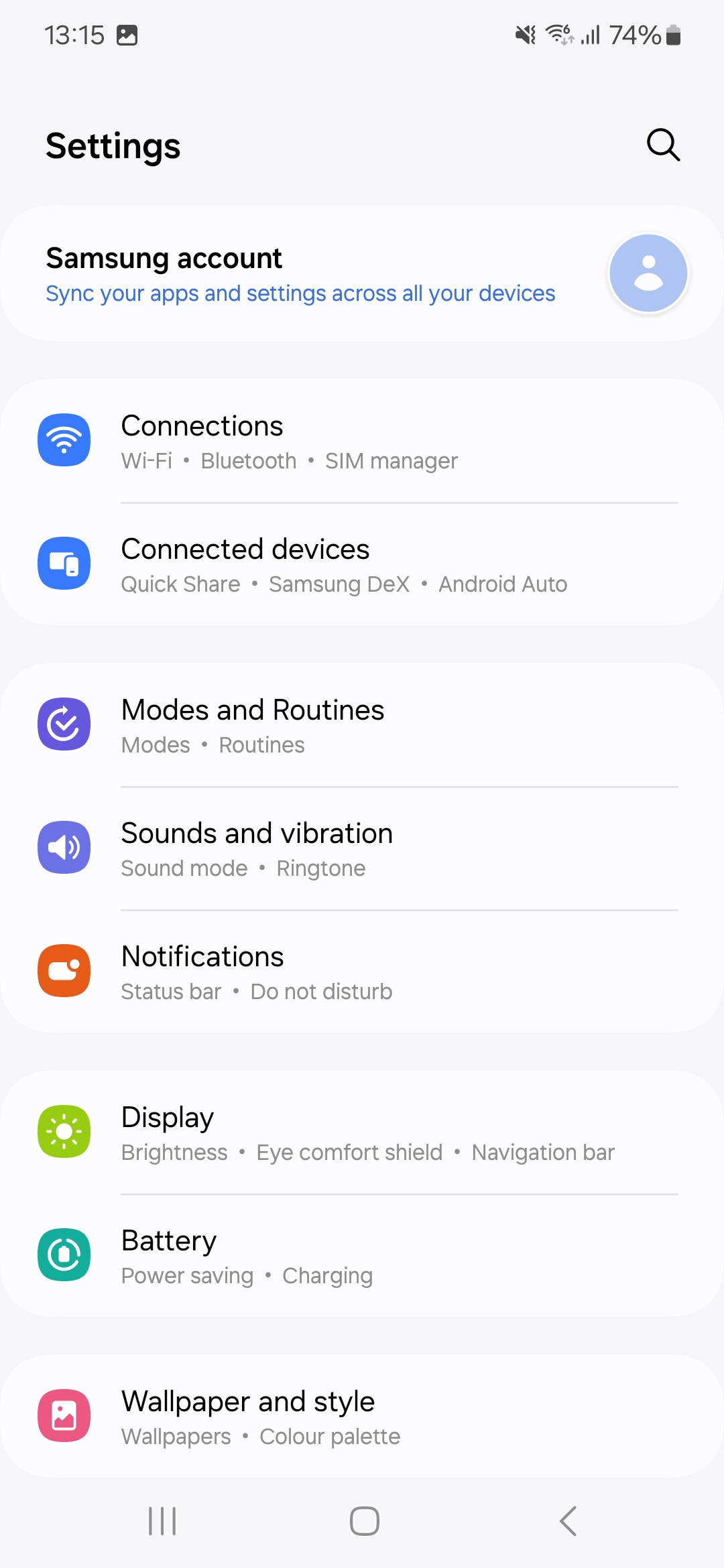
**Step 3: Go to your Settings app and click on the "Notifications" bar.**&#x20;

<figure><img src="/files/Vet0jamRsoqatlxc5pkx" alt="" width="375"><figcaption></figcaption></figure>

\
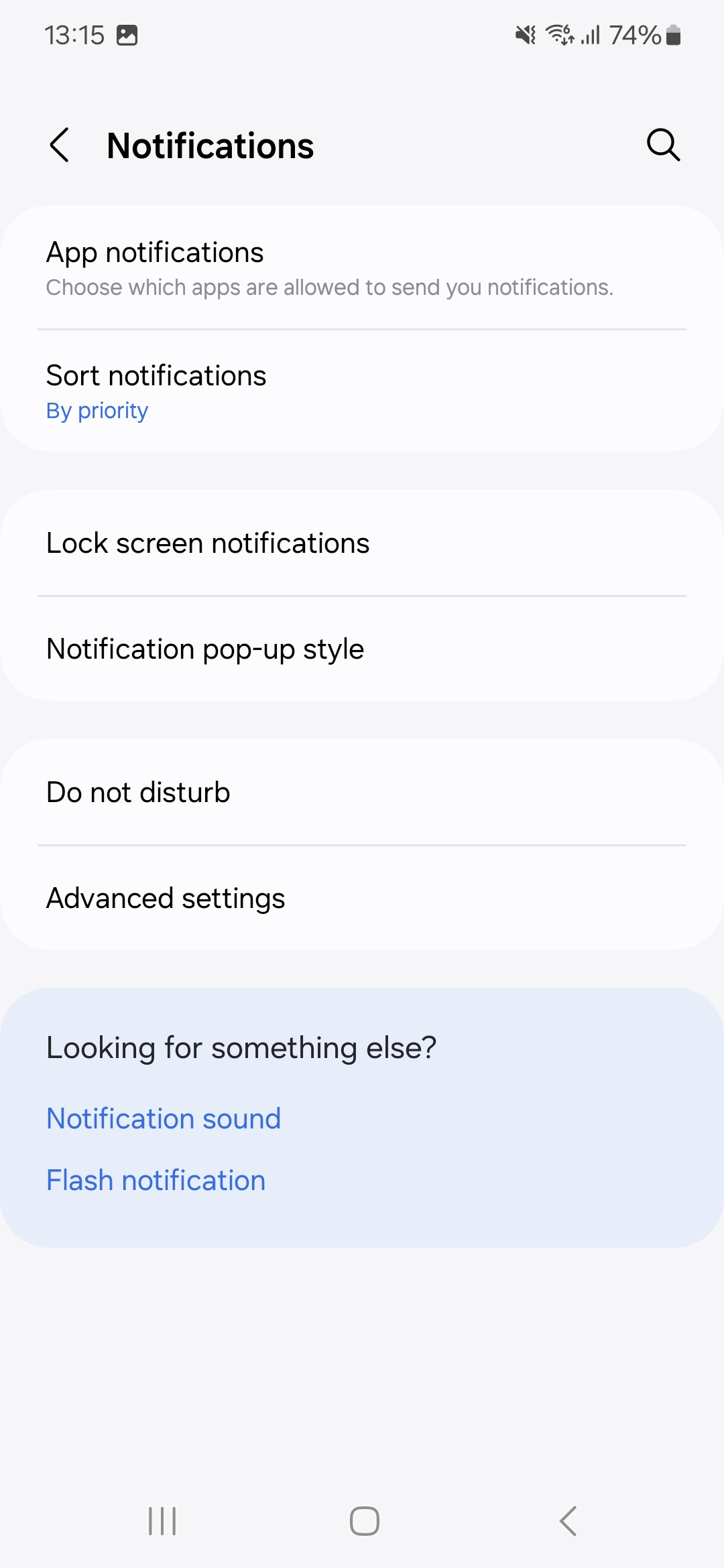
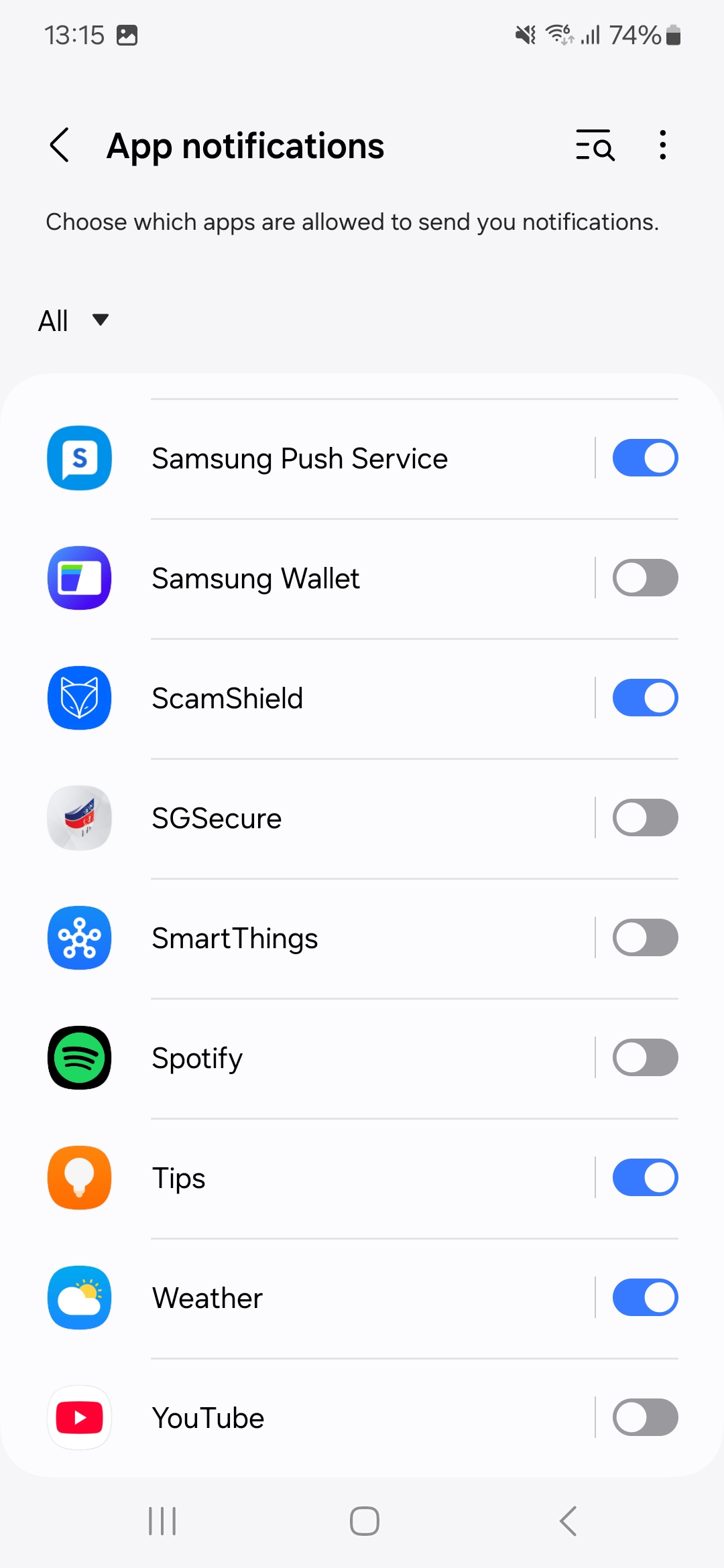
**Step 4: Click on "App notifications".**

<figure><img src="/files/ztgBu8xb0OfxKc66Dn93" alt="" width="375"><figcaption></figcaption></figure>

\
**Step 5: Make sure that the your notifications for the ScamShield app has been togged on.**&#x20;

<figure><img src="/files/Log9xtf02ZBrkUSIttZw" alt="" width="375"><figcaption></figcaption></figure>

\
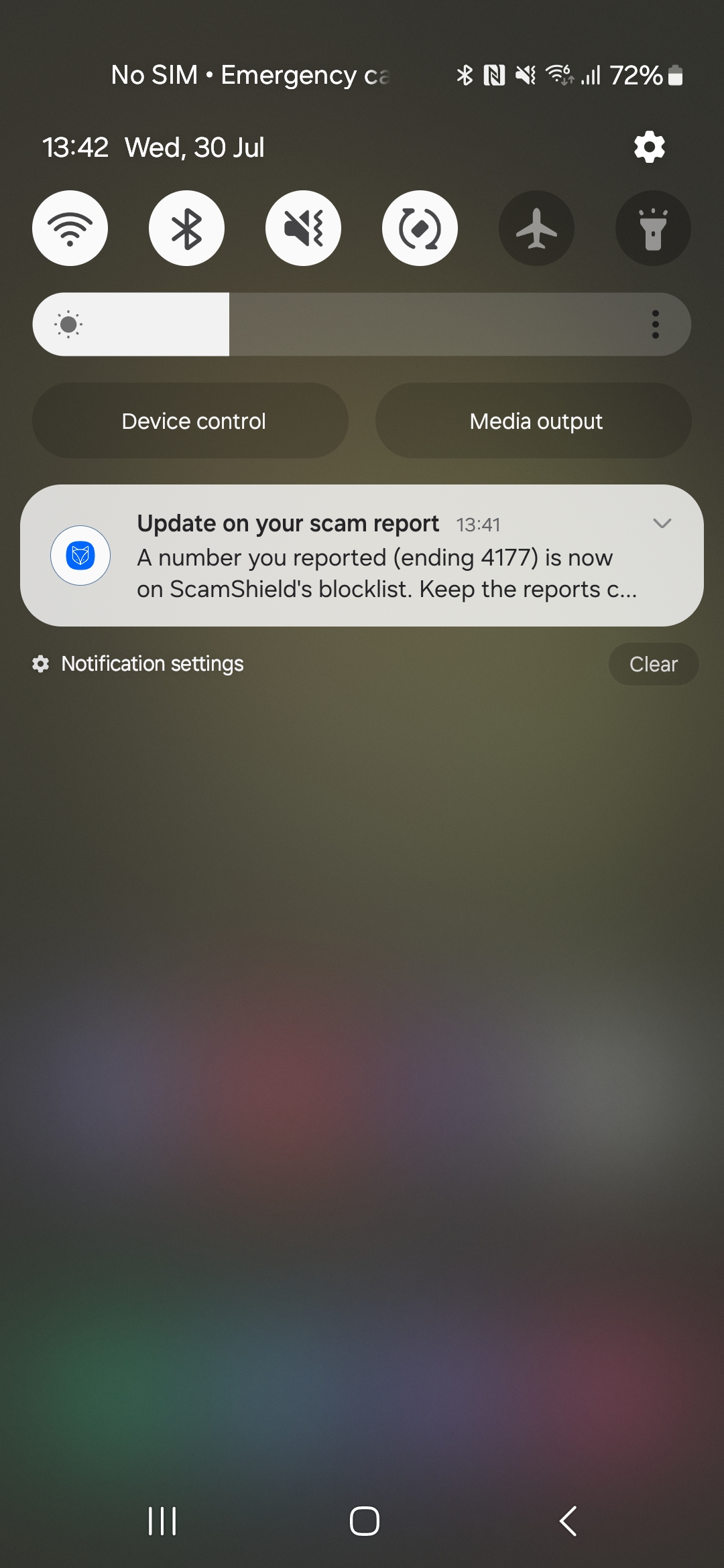
**Step 6: When your report has been marked as scam, you will receive a notification that will look like this!**

<figure><img src="/files/mYo5n4AwZS4h34J0aXUf" alt="" width="375"><figcaption></figcaption></figure>

\
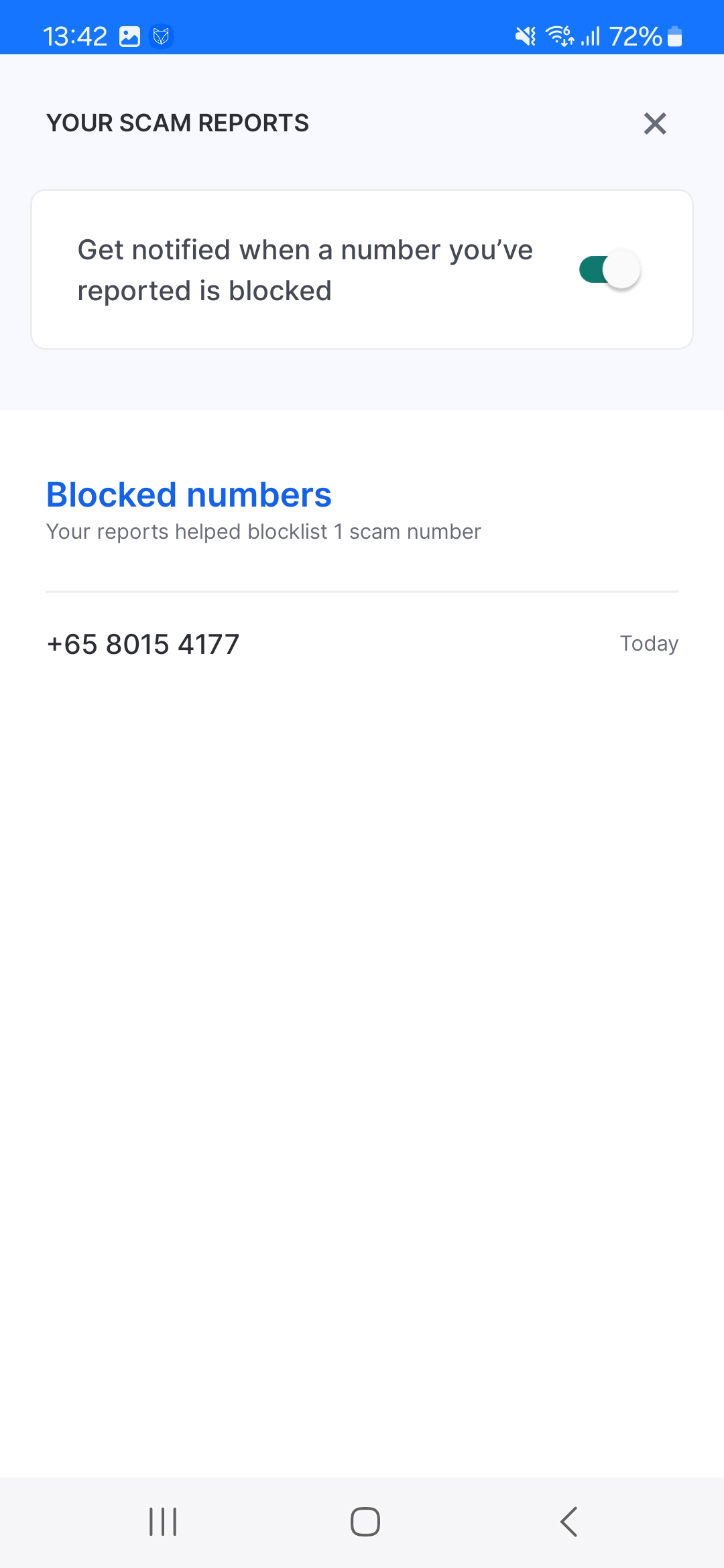
**Step 7: You will also be able to see your past scam reports that have been added to our blocklist here.**

<figure><img src="/files/GiomzoPiEAavWtjyrSd8" alt="" width="375"><figcaption></figcaption></figure>
{% endtab %}
{% endtabs %}


# Known Issues

The ScamShield Team is aware of some issues with the ScamShield app and is currently investigating these cases in more detail. We will get back to you once we are able to resolve this.

{% hint style="warning" %}
Call Blocking & Identification and SMS Filtering setting may not appear on certain iOS devices.\
\
This is a known issue on certain iOS versions. If you are unable to find these settings on your iPhone, please [reach out to us](https://go.gov.sg/scamshield-beta-feedback) with your iOS version and phone model information. Rest assured, you can still use the ScamShield app to check and submit scam reports even if your call blocking & SMS filtering permissions are not enabled.
{% endhint %}

{% hint style="warning" %}
Error encountered when processing a screenshot during checking or submitting a scam report. \
\
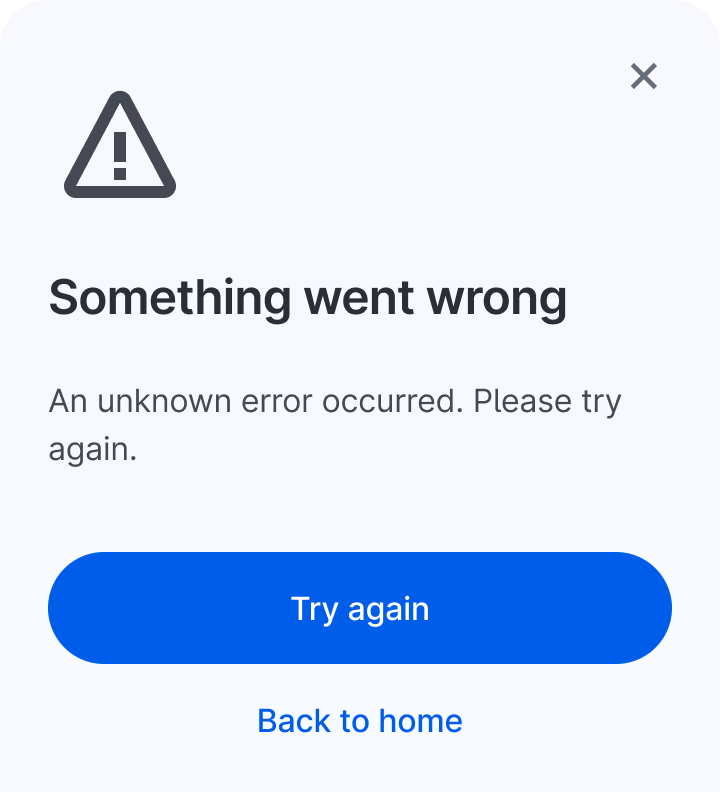
If the app fails to process the uploaded screenshot, it may occasionally generate an error saying "Something went wrong, an unknown error occured". However, based on our observations, this error is intermittent and often resolves itself if you attempt to upload the screenshot again.&#x20;
{% endhint %}


# Check for Scams

## What is "Check for Scams"?

***

ScamShield's new checking feature utilises AI/ML classification techniques to analyse and identify potential scams. You can now verify the legitimacy of incoming messages, calls and links so that you may stay safe and secure in the digital world.&#x20;

Whether it's a suspicious caller or a message requesting personal information, the ScamShield app will help you make informed decisions on how to protect yourself from potential scammers.

## What can you check on ScamShield?

***

{% content-ref url="/pages/n65ZXMIijmewtQMHFFlj" %}
[How to check a scam message](/using-scamshield/check-for-scams/how-to-check-a-scam-message)
{% endcontent-ref %}

{% content-ref url="/pages/3s9nrPZZIMOJsqdJ5Qr0" %}
[How to check a scam call](/using-scamshield/check-for-scams/how-to-check-a-scam-call)
{% endcontent-ref %}

{% content-ref url="/pages/2amdscJxeynwbSYujVPT" %}
[How to check a website link](/using-scamshield/check-for-scams/how-to-check-a-website-link)
{% endcontent-ref %}


# How to check a scam message

## Guide

***

{% tabs %}
{% tab title="Interactive Demo" %}
{% @arcade/embed flowId="7QVrLb2VDsPglwaXjMpH" url="<https://app.arcade.software/share/7QVrLb2VDsPglwaXjMpH>" %}
{% endtab %}

{% tab title="Step-By-Step Guide" %}

## Checking for Scams: A Step by Step Guide

Step 1: Launch ScamShield > Click on "Check for scams".\
\
![](/files/cWThjxDPXwSQ4EwhHj3o)

\
**Step 2**: Click on "<mark style="color:blue;">Start Check</mark>" to get started.\
\
![](/files/zT7L0vxUNNAZgk4ODBxc)

\
**Step 3**: Click on  "<mark style="color:blue;">A Message you received</mark>"

![](/files/KidYGc3uoJvRm85i2wxf)

\
**Step 4**: Select the source of the message.&#x20;

![](/files/ENOvb1tr0JU7ukiYAXkg)

\
**Step 5**: You may now proceed to either upload a screenshot of the message or copy-paste the message received into the text box provided.&#x20;

In the case uploading a screenshot, ScamShield will extract the relevant information from the conversation.

![](/files/7SAl3a4g4efkJCn1yTk8)

\
If you decide to upload a screenshot, please select the right screenshot > click on 'Check if scam' to proceed.

![](/files/wjHkYuwiyPFgUXdfAeWJ)

If you decide to copy & paste a message, please enter the sender's number or ID when prompted > click on 'Check' to proceed.

![](/files/R8I2RvvhCU1J3GH20aOt)

**Step 6**: That's it! Now you can wait for the check outcome.
{% endtab %}
{% endtabs %}

## Check Outcomes for Messages

***

<details>

<summary>Beware, this looks like a scam</summary>

![](/files/0IxmOCoYPTrx4FXwRSHK)![](/files/Ko6wEWP1jZUM8ETipBru)

If you receive this outcome for your check, please proceed with caution. You may also lookout for other relevant information in this result such as:

1. **Similarity to other types of scams.** Eg. job scam, investment scam, etc.
2. **Volume of reports for this scam.** Eg. 100 other people have reported this particular scam.
3. **Legitimacy of scam.** Eg. the phone number is deemed suspicious by the police.

To aid you in your reporting process, if the check outcome looks like a scam, <mark style="color:blue;">**ScamShield will automatically submit a scam report for you.**</mark>

</details>

<details>

<summary>Be careful, we're not sure about this one</summary>

![](/files/EwnRPOEbah2Dk2NKVKUr)

If you receive this outcome, it is highly likely this sender has not been reviewed yet.

In such a case, you may make an informed decision from available data such as volume of reports, timestamp of the latest report, etc. If you believe the message is suspicious, then you may proceed to submit a scam report.

</details>

<details>

<summary>This message looks safe</summary>

<img src="/files/L5hOEdbDjH9ABdKDC54m" alt="" data-size="original">

If you receive this outcome, it means that the sender is registered by [IMDA](https://www.sgnic.sg/smsregistry/overview) and it is safe to proceed with the interaction. However, please continue to exercise appropriate caution while sharing personal information online.

</details>

<details>

<summary>This looks like spam</summary>

![](/files/xPBMavRgDLDu4rUHGIvB)![](/files/VGkEaJEmPoj2QF4tBjPL)

If you receive this outcome, it is likely the message is spam such as promotional content, advertisements and any unsolicited communication. In such a case, <mark style="color:blue;">**ScamShield will automatically submit a scam report for you.**</mark>&#x20;

</details>

{% hint style="info" %}
What is the difference between scam and spam?

**Spam** usually comprises advertisements, promotional content and unsolicited communication.

**Scam** usually involves clicking on malicious phishing links, seeking private or sensitive information such as bank account details, providing misleading offers that deceive the recipient into making payments.&#x20;

Please be careful if you receive a message that seems like a scam.
{% endhint %}


# How to check a scam call

## Guide

***

{% tabs %}
{% tab title="Interactive Demo" %}
{% embed url="<https://go.gov.sg/check-for-scams-call>" %}
{% endtab %}

{% tab title="Step-by-step Guide" %}

## Checking for Scams: A Step by Step Guide

Step 1: Launch ScamShield > Click on "Check for scams".\
\
![](/files/cWThjxDPXwSQ4EwhHj3o)

\
**Step 2**: Click on "<mark style="color:blue;">Start Check</mark>" to get started.\
\
![](/files/zT7L0vxUNNAZgk4ODBxc)

\
**Step 3**: Click on  "A number that called you".\
\
![](/files/4D8KeLbogVg10AovLpiv)

\
**Step 4**: Select the source of the call. \
\
![](/files/8GehND35kN7dwHC0dnfe)

\
**Step 5**: Type in the phone number of the caller > click Check.\
\
![](/files/pEbwNr2k3ZZAIx3xdAJg)

**Step 6**: That's it! Now you can wait for the check outcome.
{% endtab %}
{% endtabs %}

## Check Outcomes for Calls

***

<details>

<summary>Beware, this looks like a scam!</summary>

![](/files/6ryAyy98lOJus7e4Of8t)

If you receive this outcome for your check, please proceed with caution. You may also lookout for other relevant information in this result such as:

1. **Volume of reports for this scam.** Eg. 100 other people have reported this particular scam.
2. **Legitimacy of scam.** Eg. the phone number is deemed suspicious by the police.

To aid you in your reporting process, if the check outcome looks like a scam, <mark style="color:blue;">**ScamShield will automatically submit a scam report for you.**</mark>

</details>

<details>

<summary>Be careful, we're not sure about this one</summary>

**Step 1:** If you receive this outcome, it is highly likely this sender has not been reviewed yet.

![](/files/2GynvBKrmYhPRzd55JPi)

**Step 2**: In such a case, you may make an informed decision from available data such as volume of reports, timestamp of the latest report, etc. If you believe the call is suspicious, then you may proceed to submit a scam report by clicking on '**Got it**'.

![](/files/xE4nX81nVjnSdVZt2ogB)

Step 3: Click on '**Report Potential Scam'**. ScamShield will then automatically submit a scam report on your behalf.&#x20;

![](/files/R5JowwQcwXCkTLdj9431)![](/files/So6Y4UWXwAVmxvpNeoGb)

\
Following this step, the authorities will review the report and if the call is deemed suspicious, the phone number will be blocked.

</details>

<details>

<summary>This number looks safe</summary>

If you receive an outcome like this, it means the caller is considered safe.&#x20;

Note: The ScamShield app currently only whitelists phone numbers from government institutions that have opted in for whitelisting.&#x20;

![](/files/Zbk3vLIprkw8YDGF8pjt)

</details>


# How to check a website link

## Guide

***

{% tabs %}
{% tab title="Interactive Demo" %}
{% embed url="<https://go.gov.sg/check-for-scams-link>" %}
{% endtab %}

{% tab title="Step-by-step Guide" %}
**Step 1:** Launch ScamShield > Click on "Check for scams".\
\
![](/files/72lOQqytonNFM8JnoqCl)

\
**Step 2:** Click on 'Start Check'.\
\
![](/files/Z6ofL3GDqK3CAlRyoxkO)

\
**Step 3:** Select 'A website link'. \
\
![](/files/hB0bRNQuduVpctz5HPBG)

\
**Step 4**: Copy & paste the link you want to check > click on 'Check.'\
\
![](/files/NdGeqWbEFpFKlKrkwb5H)\
\
Step 6: That's it! Now you can wait for the check outcome.
{% endtab %}
{% endtabs %}

## Check Outcomes for Links

***

<details>

<summary>Beware, this looks like a scam</summary>

![](/files/qiM4NErg7IspAI0RIuWW)

If you receive this outcome for your check, please proceed with caution. You may also lookout for other relevant information in this result such as:

1. **Volume of reports for this scam.** Eg. 100 other people have reported this particular scam.

To aid you in your reporting process, if the check outcome looks like a scam, <mark style="color:blue;">**ScamShield will automatically submit a scam report for you.**</mark>

</details>

<details>

<summary>This is not a verified link</summary>

**Step 1**: If you receive this outcome, it is highly likely the site is not an official government, bank or hospital website. In such a case, if you think the link is suspicious or malicious, please click on 'Got it'.&#x20;

![](/files/bfC7q7P1kQF9lk006hWj)

**Step 2**: Click on '**Report potential scam'**. ScamShield will then automatically submit a scam report on your behalf.&#x20;

![](/files/qkKP4pSG1sDUyRc55gxR)![](/files/SuacrGM818Hdzc729u36)

Following this step, the authorities will review the report and if the link is deemed suspicious, it will be blocked.

</details>

<details>

<summary>This link looks safe</summary>

![](/files/CA0BtS4Wf350QarPDteF)

Official government, bank and hospital websites are considered safe. If you receive this outcome, the website link is safe to visit.&#x20;

</details>


# Submit a Scam Report

## What can you report on ScamShield?

You can submit the following types of scam reports using the ScamShield app:

{% content-ref url="/pages/fmRrGjRr2yoHCIS5DG6n" %}
[How to report a scam message](/using-scamshield/submit-a-scam-report/how-to-report-a-scam-message)
{% endcontent-ref %}

{% content-ref url="/pages/l4UmGU6cx3Tevh3fBSh8" %}
[How to report a scam call](/using-scamshield/submit-a-scam-report/how-to-report-a-scam-call)
{% endcontent-ref %}

{% content-ref url="/pages/MTn7qTbFCE9MRpJPALxk" %}
[How to report a scam website](/using-scamshield/submit-a-scam-report/how-to-report-a-scam-website)
{% endcontent-ref %}

{% content-ref url="/pages/pndEfrGZu7SmMXqPc0EI" %}
[How to report a scam email](/using-scamshield/submit-a-scam-report/how-to-report-a-scam-email)
{% endcontent-ref %}

## <mark style="color:yellow;">\[NEW]</mark> Changes in the call reporting feature

The ScamShield app asks users to provide some more information during the call reporting process. This includes:

1. Who was on the call: a person or a recorded voice.
2. Who they claim to be: either a bank representative, government official, etc.

The purpose of asking for this information is to provide the authorities with more data. This will allow them to make an informed decision about whether the caller is suspicious.&#x20;

{% hint style="danger" %}
Please note that users will not be able to report unanswered calls. In such a case, it is difficult for authorities to assess a potential scam without further information. \
\
We advise our users to exercise caution in answering phone calls from unknown numbers when you are not expecting a call.&#x20;
{% endhint %}

## What happens after you submit a report?

***

Following the submission of a scam report, the message, call or link will be reviewed by the police based on the information provided by the ScamShield user. If deemed suspicious, the phone number or message will be marked as scam by authorities on the ScamShield database. Website links that are malicious will be taken down. The Call Blocking feature on the ScamShield app will then block any calls from this phone number. The SMS Filtering feature will detect and filter SMSes with the same content.

With the evolving scam landscape, the ScamShield app relies on community reporting to detect new scams. After the reports have been reviewed by authorities, the ScamShield app blocks suspicious phone numbers and messages as quickly as possible, to prevent users from falling victim to scammers.&#x20;

{% hint style="warning" %}
Please note that scam reports submitted on ScamShield are **not official police reports**. If you have fallen for a scam or lost money to a scammer, [please file an official police report](https://eservices1.police.gov.sg/phub/eservices/landingpage/police-report).
{% endhint %}


# How to report a scam message

## Guide

***

{% tabs %}
{% tab title="Interactive Demo" %}
{% @arcade/embed flowId="txUMqw3iaCOefwib2vwQ" url="<https://app.arcade.software/share/txUMqw3iaCOefwib2vwQ>" %}
{% endtab %}

{% tab title="Step-by-Step Guide" %}

### Reporting Scams: A Step-by-Step Guide

Step 1: Click on "<mark style="color:blue;">Submit a Scam Report</mark>" to report a sender ID, phone number or web link as scam.&#x20;

<figure><img src="/files/0ercnxMB1Kqtl4rbYGIb" alt="" width="375"><figcaption></figcaption></figure>

Step 2: Click on "<mark style="color:blue;">Begin Report</mark>" to get started on reporting.

<figure><img src="/files/8GNuyX5vxgIArwuJHL3M" alt="" width="375"><figcaption></figcaption></figure>

Step 3: Select "<mark style="color:blue;">Message</mark>" to continue.

<figure><img src="/files/LMs0CD8dXkM3Dr8JNvlM" alt="" width="375"><figcaption></figcaption></figure>

Step 4: Select the platform of the scam.

![](/files/QLWFtLdU3VYssbANRpoY)

Step 5: You may copy & paste the message or upload a screenshot.&#x20;

![](/files/JnO1G1sXYRULdIefKe68)

If you choose to upload a screenshot, please make sure the screenshot is saved on your phone prior to selecting upload. ScamShield will extract the relevant information from the screenshot.

Here is an example of a screenshot:

![](/files/sxLydM54CaamQsoAnSK3)

Step 6: Review your report before submission.

![](/files/zL5OaIlbqcTIgoh6gHvn)

If you have successfully submitted a report, you will see this screen.

<div align="left"><figure><img src="/files/f3DDvlybXIyBhiLoEJEK" alt="" width="375"><figcaption></figcaption></figure></div>
{% endtab %}
{% endtabs %}

{% hint style="success" %}
Thank you for reporting scams and keeping the community safe!
{% endhint %}


# How to report a scam call

## Guide

{% tabs %}
{% tab title="Interactive Demo" %}
{% embed url="<https://go.gov.sg/scamshield-report-a-call>" %}
{% endtab %}

{% tab title="Step-by-Step Guide" %}
Step #1: Click on 'Submit a Scam Report' to start\
\
![](/files/iBJg80zRV9Xi2DwMailL)

Step #2: Click on 'Begin Report'.\
\
![](/files/UMvIp6IECqmVu1gt0biV)

\
Step #3: Select what you would like to report.\
\
![](/files/qhyqn87xzuauGQdfxk7l)

\
Step #4: Select what type of call it was.\
\
![](/files/HZmCs2Eo3uwxhyV0sBxQ)\
\
Step #5: Key in the caller's phone number.\
\
![](/files/6A4tx9zzfRqfPFbDGT3Y)

\
Step #6: Select who was on the call. Please note that recorded voice refers to robo-callers.\
\
![](/files/6VvKzMCUAAqF7AYbhjNz)

Step #7: Select the kind of service or institution the caller claimed to be from. For eg. DBS is bank representative, ICA, Supreme Court, MOH are government officials, etc. &#x20;

![](/files/XAe31hQuyiqflnIyOoQc)

\
Step #8: Describe the call. Please make sure you add as many details as possible to help authorities when they review the report.\
\
![](/files/1Z8vhQyPKYsJvbzSpg8S)\
\
Step #9: And you're done! Thank you for keeping the community safe.\
\
![](/files/GHRvS8y3TJi1mEoi999M)\ <br>
{% endtab %}
{% endtabs %}

{% hint style="success" %}
Thank you for reporting scams and keeping the community safe!
{% endhint %}


# How to report a scam website

## Guide

{% tabs %}
{% tab title="Interactive Demo" %}
{% @arcade/embed flowId="wbMVbNtVAW7QAVOjUi1T" url="<https://app.arcade.software/share/wbMVbNtVAW7QAVOjUi1T>" %}

{% endtab %}

{% tab title="Step-by-Step Guide" %}
Step #1: Click on 'Submit a Scam Report' to start\
\
![](/files/iBJg80zRV9Xi2DwMailL)

Step #2: Click on 'Begin Report'.\
\
![](/files/UMvIp6IECqmVu1gt0biV)

\
Step #3: Select what you would like to report.\
\
![](/files/34sM2tSHIoHVszwlY5q9)

\
\
Step #5: Copy & paste the website link you would like to report.\
\
![](/files/YbM5XpjMO2okmt4gVlrL)\
\
\
\
Step #9: And you're done! Thank you for keeping the community safe.\
\
![](/files/GHRvS8y3TJi1mEoi999M)\ <br>
{% endtab %}
{% endtabs %}

{% hint style="success" %}
Thank you for reporting scams and keeping the community safe!
{% endhint %}


# How to report a scam email

## Guide

{% tabs %}
{% tab title="Interactive Demo" %}
{% @arcade/embed flowId="NuDzLCaBytS2YXs0c6EF" url="<https://app.arcade.software/share/NuDzLCaBytS2YXs0c6EF>" %}
{% endtab %}

{% tab title="Step-by-Step Guide" %}
Step 1: Click "Submit a scam report"&#x20;

<figure><img src="/files/YjECT3ak19bsiGWZmB4I" alt="" width="375"><figcaption></figcaption></figure>

Step 2: Click "Begin report"&#x20;

<figure><img src="/files/wsSWJsm7eFHcL1ml8igF" alt="" width="375"><figcaption></figcaption></figure>

Step 3: Click "An email you received"

<figure><img src="/files/sLWFfHgbHligj5AgNyz5" alt="" width="375"><figcaption></figcaption></figure>

Step 4: Follow the instructions on how to forward the suspicious email to us.&#x20;

<figure><img src="/files/fH7d9quKNPUZ1dhHyOU3" alt="" width="375"><figcaption></figcaption></figure>

Step 5: Once you've forwarded the email, click "I've forwarded the email".&#x20;

<figure><img src="/files/MdrTBPK4VfKYdZecPjzz" alt="" width="375"><figcaption></figcaption></figure>

Step 6: Thank you for doing your part to stay safe from scams!&#x20;

<figure><img src="/files/TKSCdFU0yHppCKosCX8w" alt="" width="375"><figcaption></figcaption></figure>

&#x20;
{% endtab %}
{% endtabs %}


# \[BETA] Get alerts for new scam trends

Know the latest scams before they reach you, straight from the police.

## What are Scam Trend Alerts (Beta)?

Scam Trend Alerts is a new feature we're trialling on the ScamShield app. It keeps you informed about the latest scams in Singapore, based on police advisories. When you opt in, you'll get up to one alert a week. This way, you'll know what scams are going around, and what to look out for before they reach you or your loved ones. For now, this feature is only available to a small group of users.

{% hint style="warning" icon="bell-ring" %}
This is a beta feature being rolled out to a small group of users first, so not everyone will see it yet.
{% endhint %}

## What should I do if I want to receive alerts on the latest scam trends?

You may follow the step-by-step instructions below on how to enable notifications for Scam Trend Alerts in your ScamShield app on both iOS and Android. &#x20;

{% content-ref url="/pages/VVS8256BRnyTbJa6PRef" %}
[Setting up Scam Alerts on iOS](/using-scamshield/beta-get-alerts-for-new-scam-trends/setting-up-scam-alerts-on-ios)
{% endcontent-ref %}

{% content-ref url="/pages/63KB4Z3su9cvtWEHXVeG" %}
[Setting up Scam Alerts on Android](/using-scamshield/beta-get-alerts-for-new-scam-trends/setting-up-scam-alerts-on-android)
{% endcontent-ref %}

## Frequently Asked Questions

1. #### **Why should I turn on Scam Alert notifications?**&#x20;

Scammers change their tactics all the time. By turning on Scam Trend Alerts, you'll be among the first to know what to look out for. The more you know, the easier it is to protect yourself and the people around you.

2. #### **I don't see this feature on my app. Why?**&#x20;

Scam Trend Alerts is a beta feature, which means we're testing it with a small group of users first. It is being rolled out randomly, so not everyone has it yet.&#x20;

3. #### **How often will I get alerts?**&#x20;

You will receive only one alert a week. We don't want to overwhelm you, so only the most important trends will be sent.

4. #### &#x20;**Where does the information come from?**&#x20;

All alerts are based on official police advisories from the Singapore Police Force. You're getting trusted, verified information, not rumours.&#x20;

5. #### **Can I turn off Scam Alert notifications?**&#x20;

Yes. You can opt out of getting Scam Alert notifications anytime in your ScamShield app. You won't receive any more notifications after that. However, you will still be able to read the latest alerts under the "Alerts" tab in your ScamShield app.&#x20;


# Setting up Scam Alerts on iOS

Step 1: Open the ScamShield app. You should see this pop-up. Click on "Explore scam alerts".

<figure><img src="/files/peeJKiDP5KUnJbK07V8k" alt="" width="375"><figcaption></figcaption></figure>

Step 2: Alternatively, click on the "Alerts" tab in the bottom navigation bar. There, you should find the list of past scam alerts that have been published.&#x20;

Click on the "Get notified about new and ongoing scams" toggle button at the top of the page. If the toggle is grey or looks like this, it means that scam alert notifications have not been enabled.&#x20;

<figure><img src="/files/cG8Q05YIch2qIGhZnE2z" alt="" width="371"><figcaption></figcaption></figure>

Step 3: The toggle button at the top of the Scam Alerts page should now be green (and look like this), indicating that you have enabled this feature.

<figure><img src="/files/NnIkoMaxCA0j9vgrDbrC" alt="" width="374"><figcaption></figcaption></figure>

Step 4: Another way to check if scam alert notifications have been turned on your device is by going into your phone settings, find the ScamShield app, and check the notification settings.&#x20;

<div><figure><img src="/files/jpr1Q5R4brORsrhgJJJg" alt="" width="375"><figcaption></figcaption></figure> <figure><img src="/files/oy7gqO4dAAaWbZZ7ph5V" alt="" width="375"><figcaption></figcaption></figure></div>


# Setting up Scam Alerts on Android

Step 1: Open the ScamShield app. You should see this pop-up. Click on "Explore scam alerts".

<figure><img src="/files/OkVBq83zI5EqF0ZYv1OR" alt="" width="359"><figcaption></figcaption></figure>

Step 2: Alternatively, click on the "Alerts" tab in the bottom navigation bar. There, you should find the list of past scam alerts that have been published.&#x20;

Click on the "Get notified about new and ongoing scams" toggle button at the top of the page. If the toggle is grey or looks like this, it means that scam alert notifications have not been enabled.&#x20;

<figure><img src="/files/Q2tnMKoWgJIuQAgDxuWi" alt="" width="357"><figcaption></figcaption></figure>

Step 3: You should see this pop up asking if you want to allow ScamShield to send you notifications. Click "Allow".&#x20;

<figure><img src="/files/7rT7cg2K0wFWgGCJSdNH" alt="" width="358"><figcaption></figcaption></figure>

Step 4: The toggle button at the top of the Scam Alerts page should now be green (and look like this), indicating that you have enabled this feature.

<figure><img src="/files/z4Lvzz35l3Hni9YBwpnW" alt="" width="358"><figcaption></figcaption></figure>

Step 5: Another way to check if scam alert notifications have been turned on your device is by going into your phone settings, find the ScamShield app, and check the notification settings.&#x20;

Note: The steps may look a little different depending on your Android phone.&#x20;

<figure><img src="/files/imZ6lFR2rdJlwRIqlQZi" alt="" width="351"><figcaption></figcaption></figure>


# What's next for ScamShield?

ScamShield is dedicated to improving based on the valuable feedback from our users. Based on your feedback, we have been shaping the future of ScamShield by touching on these areas of focus:

* Closing the feedback loop for users who submit reports
* Growing our community of scam spotters
* Educating users to better protect themselves from scams in the social platforms

Please contact us through the app if you have any feedback on how ScamShield can evolve as a product and serve the community better.


# Help Center

<table data-view="cards"><thead><tr><th></th><th></th><th></th></tr></thead><tbody><tr><td><a href="/pages/19Vt1Cm3JTRYC6hIOxvJ">About ScamShield</a></td><td></td><td>Find out more about the app works!</td></tr><tr><td><a href="/pages/E6GMthKtvqI2nd6bGp9s">Call Blocking</a></td><td></td><td>What you need to know when enabling call blocking  for ScamShield.</td></tr><tr><td><a href="/pages/r1SIofjXH87DsXwWtLww">SMS Filtering</a></td><td></td><td>If your SMS filtering shield is not enabled, here are a few tips on how to fix that.</td></tr><tr><td><a href="/pages/1ruZ08sbglpK36meJfhU">Checking a Scam</a></td><td></td><td>Here's what you need to know about checking a scam using ScamShield.</td></tr><tr><td><a href="/pages/PZIbVGSBEcfBQ9NIGB3K">Reporting a Scam</a></td><td></td><td>Learn how to report a scam effectively and keep the community safe.</td></tr><tr><td><a href="/pages/bYqiSWo07jYyh4CoL38M">Your Privacy</a></td><td></td><td>Here's how we ensure your privacy and safety is safeguarded.</td></tr></tbody></table>


# About ScamShield

{% content-ref url="/pages/43kGzlqfRmR8OKXDfNea" %}
[Who built this app?](/resources/help-center/about-scamshield/who-built-this-app)
{% endcontent-ref %}

{% content-ref url="/pages/vo3U5SpDevwtje5XvThh" %}
[How do I know which is the official ScamShield App?](/resources/help-center/about-scamshield/how-do-i-know-which-is-the-official-scamshield-app)
{% endcontent-ref %}

{% content-ref url="/pages/VqngCwmCo9l0q608eJRI" %}
[I am unable to setup the app](/resources/help-center/about-scamshield/i-am-unable-to-setup-the-app)
{% endcontent-ref %}

{% content-ref url="/pages/1DX3L4srDj0K57SHlp5d" %}
[How does the ScamShield app work?](/resources/help-center/about-scamshield/how-does-the-scamshield-app-work)
{% endcontent-ref %}

{% content-ref url="/pages/zEi40O1eGXQpWCxcPa8c" %}
[Do I need a WiFi or data plan for the app to work?](/resources/help-center/about-scamshield/do-i-need-a-wifi-or-data-plan-for-the-app-to-work)
{% endcontent-ref %}

{% content-ref url="/pages/aeiOODISF687ee714iWt" %}
[Once installed, can hackers hack into my phone if the app is compromised?](/resources/help-center/about-scamshield/once-installed-can-hackers-hack-into-my-phone-if-the-app-is-compromised)
{% endcontent-ref %}

{% content-ref url="/pages/qf7FSxggKv1KiO3AsxQ2" %}
[Why do I still receive scam calls or messages, after I have installed the ScamShield app?](/resources/help-center/about-scamshield/why-do-i-still-receive-scam-calls-or-messages-after-i-have-installed-the-scamshield-app)
{% endcontent-ref %}

{% content-ref url="/pages/7Ptk0DYVmj5h0WMQ6pqm" %}
[How do I know the app is working?](/resources/help-center/about-scamshield/how-do-i-know-the-app-is-working)
{% endcontent-ref %}

{% content-ref url="/pages/wJ4GEONtmvrmA2mJk2as" %}
[Can I deactivate either the filtering of incoming phone calls or text messages function?](/resources/help-center/about-scamshield/can-i-deactivate-either-the-filtering-of-incoming-phone-calls-or-text-messages-function)
{% endcontent-ref %}

{% content-ref url="/pages/gms2PeQRGUnHLCaoNaEI" %}
[What happens if I delete the app? Will all my junk messages be deleted too?](/resources/help-center/about-scamshield/what-happens-if-i-delete-the-app-will-all-my-junk-messages-be-deleted-too)
{% endcontent-ref %}

{% content-ref url="/pages/dhGPmsu5ZypL4uXNSalN" %}
[Can I download ScamShield while I am traveling or if I live overseas?](/resources/help-center/about-scamshield/can-i-download-scamshield-while-i-am-traveling-or-if-i-live-overseas)
{% endcontent-ref %}

{% content-ref url="/pages/wJD8K1FuUYj6bAbidR48" %}
[Can I use ScamShield if I have an overseas phone number?](/resources/help-center/about-scamshield/can-i-use-scamshield-if-i-have-an-overseas-phone-number)
{% endcontent-ref %}


# Who built this app?

The app is developed by Open Government Products (OGP), in collaboration between the National Crime Prevention Council (NCPC), and the Singapore Police Force (SPF).


# How do I know which is the official ScamShield App?

You can find the official ScamShield App on the [Google Play store](https://play.google.com/store/apps/details?id=sg.gov.scamshield) or [Apple App store](https://apps.apple.com/sg/app/scamshield/id1497144087).

In general, please only download apps from the official app store onto your mobile phone.


# I am unable to setup the app

If you have issues with setting up the app, please follow the instructions starting from the [Getting Started](/getting-started/system-requirements) section of our guide.

If you are still facing issues, do contact us through our [in-app feedback form](https://go.gov.sg/scamshield-feedback-form).&#x20;


# How does the ScamShield app work?

The ScamShield app allows users to do the following:

1. Checking of scams - easily find out if a suspicious message, link, or phone number is a scam. ScamShield uses a robust algorithm, with AI/ML classification to evaluate the check outcome.&#x20;
2. Submitting scam reports  - users can now upload screenshots with scam reports, so ScamShield can monitor them more effectively. Phone numbers, messages and links that are reported will be reviewed. If they are deemed suspicious, ScamShield will block the phone numbers and links.
3. Blocking and filtering - provides users with step-by-step instructions on how to set up their phone to block scam calls and SMSes.


# Do I need a WiFi or data plan for the app to work?

You don’t need WiFi or a data plan for the app to detect scam messages. The app runs in the background to detect incoming scam text messages.

However, without WiFi or a data plan, the app will not be able to block scam calls, and will not be able to check scams or report scams to ScamShield.


# Once installed, can hackers hack into my phone if the app is compromised?

As the app does not individually identify any users, and it does not access any other data on your phone, you and your phone are not at risk even if the app is compromised.


# Why do I still receive scam calls or messages, after I have installed the ScamShield app?

The scam landscape is constantly changing. This may lead to scam SMSes or calls getting through as the ScamShield ML algorithm learns the new scam trends.&#x20;

The ScamShield team seeks your help to submit scam reports for any new scam messages or calls on the ScamShield app that were not detected by the App, in order for us to keep our products up to date to fight scams better. By reporting scam messages and calls that were not detected by the ScamShield app, you help to keep the community safe from scams.


# How do I know the app is working?

The app is designed to work in the background to protect you from scam calls and SMSes. To check if ScamShield is working, iOS users may view filtered SMSes in their phone's junk messages folder. For Android users, a notification is sent to users if a scam SMS has been received.


# Can I deactivate either the filtering of incoming phone calls or text messages function?

Yes, either function can be deactivated at any time in your settings. Please note that this will limit the functionality of the app. To learn more, visit the following sections of our user guide:

[Setup Call Blocking](/getting-started/setup-call-blocking)

[Setup SMS Filtering](/getting-started/setup-sms-filtering)


# What happens if I delete the app? Will all my junk messages be deleted too?

No, the app does not delete your messages.

For iOS, the Junk Messages folder on your phone will remain with all the SMSes intact even after the app has been deleted.

For Android, all SMSes remain in your SMS folder after the app has been deleted.


# Can I download ScamShield while I am traveling or if I live overseas?

ScamShield is currently only available for download in Singapore. Therefore, you will not be able to download this app if your app store region is set to another country.&#x20;

If you encounter a scam from overseas while you are traveling or living abroad, it is highly likely that it does not exist in the ScamShield database. In such a case, it is more useful to report it to local authorities of the country you are staying in so prompt action can be taken against the scammers.


# Can I use ScamShield if I have an overseas phone number?

ScamShield is currently only effective for local Singaporean phone numbers. If you are using a foreign telco in Singapore, call blocking and SMS filtering may not work for you as foreign sender IDs are not registered by [IMDA](https://www.sgnic.sg/smsregistry/overview). We recommend using a local telecommunication provider and enabling your call blocking & SMS filtering permissions for optimum usage of the app.


# Why can't I report a scam on the ScamShield website anymore?

Previously, the ScamShield website allowed users to report a scam using a '**Report a Scam**' form hosted on the website.&#x20;

This was an alternative avenue for users to report scams as prior to August 7th, 2024, the ScamShield app required users to setup their permissions for call blocking and SMS filtering before they could submit scam reports. As a result, when users encountered issues during permission setup or when they chose not to enable permissions, they would not be able to use the app to submit scam reports.&#x20;

However, with the rollout of the enhanced ScamShield app, users will now be able to scam reports independent of setting up their permissions.&#x20;

{% hint style="info" %}
To upgrade to the enhanced ScamShield app,

* &#x20;If you are an iOS user, proceed to your **App Store > ScamShield > Update**. The latest version should be [v4.1.0](https://go.gov.sg/scamshield-ios-version).
* If you are an Android user, it may take up to a week for PlayStore to roll out this update to you. However, you can check by going to **PlayStore > ScamShield > Update**. The latest version should be [v3.1.0](https://go.gov.sg/scamshield-android-version).
  {% endhint %}


# Call Blocking

{% content-ref url="/pages/o6Cqdfbvg4RCcFCPDkhV" %}
[How do I know call blocking is enabled on my phone?](/resources/help-center/call-blocking/how-do-i-know-call-blocking-is-enabled-on-my-phone)
{% endcontent-ref %}

{% content-ref url="/pages/oKo1Y0oFLPVPtLTCbyel" %}
[I am unable to enable call blocking on iOS](/resources/help-center/call-blocking/i-am-unable-to-enable-call-blocking-on-ios)
{% endcontent-ref %}

{% content-ref url="/pages/5FYHTiWeQHwtCtYTfleo" %}
[Does ScamShield need caller ID to work?](/resources/help-center/call-blocking/does-scamshield-need-caller-id-to-work)
{% endcontent-ref %}

{% content-ref url="/pages/6BtMVDMEnFxYbkvl7NXf" %}
[Will the app block calls from people I know?](/resources/help-center/call-blocking/will-the-app-block-calls-from-people-i-know)
{% endcontent-ref %}

{% content-ref url="/pages/hxLSsQiFwXImsrfkSyPV" %}
[Who do I contact if my number was wrongly blocked by ScamShield?](/resources/help-center/call-blocking/who-do-i-contact-if-my-number-was-wrongly-blocked-by-scamshield)
{% endcontent-ref %}


# How do I know call blocking is enabled on my phone?

For iOS, **Call Blocking & Identification** setting will need to be switched on for ScamShield.

For Android, ScamShield will need to be setup as **default caller ID & spam app** in the settings.

For more information, please refer to our section on [Setup Call Blocking](/getting-started/setup-call-blocking).


# I am unable to enable call blocking on iOS

From our observation, iOS users may have trouble enabling their call blocking & identification extension for ScamShield on certain iOS versions. Before you report the issue, please ensure you have carried out the following steps:

* Updated the ScamShield app version to the latest available version on [iOS App Store](https://apps.apple.com/sg/app/scamshield/id1497144087) (**ver 4.0.1-1**).
* Tried to re-enable the call blocking setting (even if you have the latest version).
* Exited and restarted the ScamShield app.<br>

Our team is working on issuing a permanent fix for the call blocking permission issue and we will be rolling out this fix over the next few weeks. \
\
If you have submitted feedback, we will be in touch with you as soon as a fix is rolled out.


# Does ScamShield need caller ID to work?

No, ScamShield only auto-blocks callers based on whether the phone number is blocked in the ScamShield database. This does not include alphanumeric caller IDs, therefore it will not impact you if you choose to opt-out of using caller IDs or caller number displays from your telco.


# Will the app block calls from people I know?

The app does not filter calls from people in your contact list, or those you have an existing conversation with. The app only blocks calls from the ScamShield database of blocked numbers.


# Who do I contact if my number was wrongly blocked by ScamShield?

If you think that your number might have been wrongly blocked or reported as a scam number, please call the ScamShield Helpline at 1799.&#x20;


# SMS Filtering

{% content-ref url="/pages/yVIFh0p82OufHd4CTQVY" %}
[Why am I still receiving SMS from "Likely-SCAM" Sender ID?](/resources/help-center/sms-filtering/why-am-i-still-receiving-sms-from-likely-scam-sender-id)
{% endcontent-ref %}

{% content-ref url="/pages/N4S7jr08Cxy6j4YOOJ77" %}
[How do I know SMS filtering is enabled on my phone?](/resources/help-center/sms-filtering/how-do-i-know-sms-filtering-is-enabled-on-my-phone)
{% endcontent-ref %}

{% content-ref url="/pages/XBkxXxrUEBrkUsHs0oPo" %}
[Will I be able to see the SMSes that get filtered?](/resources/help-center/sms-filtering/will-i-be-able-to-see-the-smses-that-get-filtered)
{% endcontent-ref %}

{% content-ref url="/pages/AzDmyKgUufhcnLJvTsWa" %}
[Does ScamShield filter messages on other apps like WhatsApp?](/resources/help-center/sms-filtering/does-scamshield-filter-messages-on-other-apps-like-whatsapp)
{% endcontent-ref %}

{% content-ref url="/pages/aTvSqS72uE7qyPIxhFeg" %}
[Will the app filter SMSes from people I know?](/resources/help-center/sms-filtering/will-the-app-filter-smses-from-people-i-know)
{% endcontent-ref %}

{% content-ref url="/pages/HyXQwo53KKqnwcqsPFbS" %}
[Why can’t ScamShield automatically filter scam messages on Android devices?](/resources/help-center/sms-filtering/why-cant-scamshield-automatically-filter-scam-messages-on-android-devices)
{% endcontent-ref %}

{% content-ref url="/pages/gAkLqEZINZlF5TPfRxcH" %}
[My gov.sg SMSes get filtered into 'Unknown Senders' in iOS. Is this filtered by ScamShield?](/resources/help-center/sms-filtering/my-gov.sg-smses-get-filtered-into-unknown-senders-in-ios.-is-this-filtered-by-scamshield)
{% endcontent-ref %}


# Why am I still receiving SMS from "Likely-SCAM" Sender ID?

From 31 Jan 2023, the **"Likely-SCAM"** header is used on all SMSes sent by local and foreign entities that use alphanumeric Sender IDs which are not registered with Singapore SMS Sender ID Registry (**SSIR**). IMDA's guidelines on Sender ID can be found [here.](https://www.imda.gov.sg/how-we-can-help/anti-scam-measures)\
\
As the "Likely-SCAM" header in itself is a warning to the user and functions similar to a spam filter, users are advised to exercise caution when they receive such SMSes. Users should ignore SMSes with a "Likely-SCAM" Sender ID if the content of the message is not relevant to them.

{% hint style="info" %}
The ScamShield app does not filter SMSes with the "Likely-SCAM" Sender ID as they could contain legitimate information - e.g. OTPs from a foreign business which did not register its Sender ID in Singapore.
{% endhint %}


# How do I know SMS filtering is enabled on my phone?

For iOS, SMS filtering will need to be switched on for ScamShield under **Unknown & Spam** settings.

For Android, ScamShield will need to be allowed to **send and view SMSes**, **send notifications** and **access your contacts** in the settings.

For more information, please refer to our section on [Setup SMS Filtering](/getting-started/setup-sms-filtering). If you'd like to see where the SMSes are being filtered, please refer to our FAQ on "[Will I be able to see the SMSes that get filtered?](/resources/help-center/sms-filtering/will-i-be-able-to-see-the-smses-that-get-filtered)"


# Why does my SMS filtering permission stay active even after I turn off the setting on my phone?

It is currently not possible for the ScamShield app to detect if the SMS Filtering setting has been setup on iOS. Therefore, if you are turning on your SMS filtering permissions, please make sure you set it up and click on "I've done this" once you are done.

Need help? Check out our [SMS Filtering setup interactive demo!](/resources/help-center/sms-filtering)


# Will I be able to see the SMSes that get filtered?

For iOS, filtered messages are sent to the Junk Messages SMS folder on your phone. You will still be able to see these messages if you open the folder. These SMSes will be tagged with a label called "<mark style="color:blue;">Filtered by ScamShield</mark>".

For Android, a notification is sent to inform you about the scam message. The messages will remain in your inbox due to Android policy restrictions. But you may see the filtered SMSes by clicking on the link called "<mark style="color:blue;">Show filtered SMSes</mark>".

Please avoid clicking any links in these SMSes that have been flagged as possible scams.


# Does ScamShield filter messages on other apps like WhatsApp?

No, the ScamShield app can only filter incoming SMSes at the mobile OS level. If you receive scam/spam messages on other chat apps like WhatsApp, Telegram, WeChat, IMO, Viber, etc. you can forward them to us using ScamShield’s in-app reporting function.

Please note that ScamShield also does not work on third party apps either like iBanking apps, ecommerce apps (eg. Shopee, Amazon) or delivery/transportation apps (eg. Grab, Gojek).&#x20;


# Will the app filter SMSes from people I know?

The app does not filter messages coming from people in your contact list, or contacts that you have an existing conversation with.

However, in the case of iOS, if an SMS you are expecting isn't in the Junk Messages folder, please check the 'Unknown Senders' SMS folder to double confirm it hasn't been filtered as an unknown contact.


# Why can’t ScamShield automatically filter scam messages on Android devices?

On Android devices, we are unable to automatically move messages which ScamShield has identified as potential scams to the junk folder. This is due to the way Android is configured.

Android users instead receive a notification when they receive a potential scam SMS. They can also find a compiled list of scam SMSes they have received in the app if they click on '<mark style="color:blue;">**Show Filtered SMSes**</mark>' under 'Scam SMS Filtering is Active'.


# My gov.sg SMSes get filtered into 'Unknown Senders' in iOS. Is this filtered by ScamShield?

ScamShield only filters SMSes that are from senders who are marked as scam by the Singapore Police Force. Official government messages from [gov.sg](http://gov.sg/) as seen in the image attached below, will not be filtered by ScamShield.

<div align="left"><figure><img src="/files/i8Oxi0iTcwaRCNeVQixe" alt="" width="161"><figcaption></figcaption></figure></div>

Source: <https://ask.gov.sg/govsg/questions/clxe8e0ve002fbhd4cp8bx0fi?from=agencyhomepage>

If you are an iOS user with SMS filtering permissions enabled, messages from unknown senders will be filtered into the "Unknown Senders" folder. This filtering is not done by ScamShield. This is a device/OS level setting which filters SMSes sent by someone not in your contacts or senders you have not interacted with into the "Unknown Senders" folder. In such a situation, it is best to check your "All Messages" folder instead if you are expecting a message from a sender not in your contacts.<br>

Messages filtered by ScamShield on iOS will be routed to the Junk Messages folder in iOS (labelled as 'Filtered by ScamShield').&#x20;


# Check for Scams

{% content-ref url="/pages/koQvEwOCHtYRJfVtYBCH" %}
[I want to check a scam. How do I do this?](/resources/help-center/check-for-scams/i-want-to-check-a-scam.-how-do-i-do-this)
{% endcontent-ref %}

{% content-ref url="/pages/up5PIP3OzkQE2W9gI0zH" %}
[Can I check screenshots?](/resources/help-center/check-for-scams/can-i-check-screenshots)
{% endcontent-ref %}

{% content-ref url="/pages/Sn7cAGnwXRk8g6skH6Yn" %}
[What kind of message screenshots can I upload?](/resources/help-center/check-for-scams/what-kind-of-message-screenshots-can-i-upload)
{% endcontent-ref %}

{% content-ref url="/pages/EWW8Y9jsczGn1q49GauP" %}
[Can I check a scam if my call blocking and SMS filtering permissions are not setup?](/resources/help-center/check-for-scams/can-i-check-a-scam-if-my-call-blocking-and-sms-filtering-permissions-are-not-setup)
{% endcontent-ref %}

{% content-ref url="/pages/PcXUO3Rq7gLAvDqqvE2l" %}
[Can I check scams received on messaging platforms other than SMS?](/resources/help-center/check-for-scams/can-i-check-scams-received-on-messaging-platforms-other-than-sms)
{% endcontent-ref %}

{% content-ref url="/pages/j83csuNiUGA7L9yoU2Qt" %}
[Can I check scams I received in an email, online shopping platform or social media?](/resources/help-center/check-for-scams/can-i-check-scams-i-received-in-an-email-online-shopping-platform-or-social-media)
{% endcontent-ref %}

{% content-ref url="/pages/qGIaCaMhUQggfpS9kN8k" %}
[Does the ScamShield app auto-report all the scams I check?](/resources/help-center/check-for-scams/does-the-scamshield-app-auto-report-all-the-scams-i-check)
{% endcontent-ref %}

{% content-ref url="/pages/EWJTZ2CcfFKDuhyITZsm" %}
[What action do I take after checking a scam?](/resources/help-center/check-for-scams/what-action-do-i-take-after-checking-a-scam)
{% endcontent-ref %}


# I want to check a scam. How do I do this?

To check a scam, you can click on "Check for Scams" button on the home page of the ScamShield app. To find out more about how checking a scam works, please refer to our section on '[Check for Scams](/using-scamshield/check-for-scams)'.


# Something went wrong. My screenshot can't be read. What do I do next?

If you see this error, please try again as this might be an intermittent error. However, if this error keeps occurring, please reach out to us with more details of the issue. We will follow up with the relevant authorities.

You may reach out to us here by selecting "**I am facing an issue**" and attaching the screenshot of the scam you are trying to check: <https://go.gov.sg/scamshield-contact-us>
<figure><img src="/files/aW8VUBWkfm2SvJONB4ZN" alt="" width="360"><figcaption></figcaption></figure>


# Can I check screenshots?

Yes, you can upload screenshots. For more information on how to check for scams by uploading screenshots, please check our section on \`[Check for Scams](/using-scamshield/check-for-scams)'.&#x20;

For further information on how we protect your privacy, please check our section on "[Safety & Privacy](broken://pages/Y3anxz0SBCo4gmBmi4Gp)".

{% hint style="info" %}
To make the most of your checking process, please make sure you upload a screenshot which is clear and has sufficient information for ScamShield to perform an assessment.
{% endhint %}


# What kind of message screenshots can I upload?

Messages passed through ScamShield's 'Check for Scams' feature should have the following information in clear view:

1. Sender ID or name of the sender
2. Message content or the suspicious text in the conversation

Here are some examples of message formats that can be tested:

<figure><img src="/files/zWNZVTZsdyvV97bffES8" alt=""><figcaption></figcaption></figure>


# Can I check a scam if my call blocking and SMS filtering permissions are not setup?

Yes, you can still check scams. These functionalities are independent of the permissions setup for call blocking and SMS filtering. For more information on how to check a scam, please refer to the following page:&#x20;

{% content-ref url="/pages/l4Hs6mtA99U4X2M3AaSb" %}
[Check for Scams](/using-scamshield/check-for-scams)
{% endcontent-ref %}


# Can I check scams received on messaging platforms other than SMS?

You can check scams received on platforms such as WhatsApp and Telegram using the ScamShield app. For the entire checking flow and how it works, please refer to our section '[Check for Scams](/using-scamshield/check-for-scams)'.

{% hint style="warning" %}
What about other messaging platforms such as WeChat, Facebook Messenger or TikTok?\
\
We understand there are many platforms for scammers to approach our users. However, the options we currently provide in our checking flow are the platforms with the most number of prevalent scams (*Source:* [*Total Scam and Cybercrime Cases Mid-Year 2023*](https://www.police.gov.sg/-/media/9B26F6C9613B4760AC78D15EBCDB4048.ashx)*).*<br>

If you come across a suspicious link, phone number or message on any of these platforms, please submit a scam report anyway by selecting "Others" as a platform. This will help us review the message and if deemed suspicious, the phone number or link can be blocked from all platforms.
{% endhint %}


# Can I check scams I received in an email, online shopping platform or social media?

The ScamShield app currently does not support the reporting of scams from email, social media or online shopping platforms.

<br>

While we are working on this feature, we do have a unique workaround for you.

<br>

Step 1: Launch ScamShield App > Click on 'Check for Scams' > 'A message you received' > Select '**Others**' when asked to choose where you got this message.

![](https://file.go.gov.sg/scamshield-others-report-step1.png)

<br>

Step 2: **Copy & paste the scam content** you came across. Please exercise caution when doing this so that you do not accidentally click on any suspicious links. If you know the sender, you may type in the name of the sender.

<br>

![](https://file.go.gov.sg/scamshield-others-report-step2.png)

<br>

<br>

Step 3: Click on 'Check'. If the outcome of the check says 'Be careful, we are not sure about this one', please click on 'Got it' > '**Report potential scam**'.

![](https://file.go.gov.sg/scamshield-others-report-step3.png)

<br>

Following this, ScamShield will report this potential scam for you.


# Does the ScamShield app auto-report all the scams I check?

No, the ScamShield app only auto-reports two types of senders:

1. If the message, phone number or link has a high probability of being a scam&#x20;
2. If the message, phone number or link is spam or promotional content

If the ScamShield app is unsure about a check and you think the message, call or link is suspicious, please proceed to submit a scam report. To find out more about what the outcomes of various checks are, please refer to our section on [Understanding Check Results.](/using-scamshield/check-for-scams#understanding-check-results)


# What action do I take after checking a scam?

After checking a scam, the ScamShield app will provide you an outcome for your check. Based on this outcome, you may make an informed decision on what to do next.

Here are list of possible outcomes and next steps you can follow:

{% hint style="danger" %} <mark style="color:red;">**Beware, this looks like a scam**</mark>

The ScamShield app will **automatically report this scam for you**. Please be extremely cautious when this outcome is displayed. Do not share any private information such as bank account details, or click on dubious links if prompted to do so.
{% endhint %}

{% hint style="warning" %} <mark style="color:orange;">**Be careful, we're not sure about this one**</mark>

The ScamShield app is either still reviewing this case or there is not enough information in our database to evaluate the nature of the message, phone number or link. Based on the data provided in the outcome, you may choose to report this entity if you think it is suspicious. For eg. a large volume of reports, frequent or recently updated reports, etc.
{% endhint %}

{% hint style="info" %} <mark style="color:blue;">**This looks like spam**</mark>

The ScamShield app will **automatically report this entity for you.** The entity being checked is likely promotional content for a business, advertisements or unsolicited communication.&#x20;
{% endhint %}

{% hint style="success" %} <mark style="color:green;">**This message looks safe**</mark>

If you receive this outcome, it means that the sender ID is registered by [IMDA](https://www.sgnic.sg/smsregistry/overview) and it is safe to proceed with the interaction. However, do exercise caution while sharing private information online by making sure you are engaging with verified and official sources only.
{% endhint %}

For more information on interpreting check results and next steps, you may refer to our section on [Understanding Check Results](/using-scamshield/check-for-scams#understanding-check-results).


# Submit a Scam Report

{% content-ref url="/pages/UiFjDYnjfV0X4xy30BJH" %}
[I want to submit a scam report. How do I do this?](/resources/help-center/submit-a-scam-report/i-want-to-submit-a-scam-report.-how-do-i-do-this)
{% endcontent-ref %}

{% content-ref url="/pages/mUpVuZsDsziAM6fTI5QT" %}
[What happens after I submit a scam report?](/resources/help-center/submit-a-scam-report/what-happens-after-i-submit-a-scam-report)
{% endcontent-ref %}

{% content-ref url="/pages/97BtFwNDkvuNprB60Xf4" %}
[How is reporting different from check for scams?](/resources/help-center/submit-a-scam-report/how-is-reporting-different-from-check-for-scams)
{% endcontent-ref %}

{% content-ref url="/pages/Ae5e7Eo5kgLnIyCjXmjw" %}
[Why do I still receive scams even after I have reported the scam?](/resources/help-center/submit-a-scam-report/why-do-i-still-receive-scams-even-after-i-have-reported-the-scam)
{% endcontent-ref %}

{% content-ref url="/pages/b5IWY82ksm33cWUGnnzJ" %}
[Can I still submit a scam report if my call blocking and SMS filtering permissions are not setup?](/resources/help-center/submit-a-scam-report/can-i-still-submit-a-scam-report-if-my-call-blocking-and-sms-filtering-permissions-are-not-setup)
{% endcontent-ref %}


# I want to submit a scam report. How do I do this?

To submit a scam report, you can click on "<mark style="color:blue;">**Submit a Scam Report**</mark>" button on the home page of the ScamShield app. To find out more about how checking a scam works, please refer to our section on '[Submit a Scam Report'](/using-scamshield/submit-a-scam-report).


# Can I still submit a scam report if my call blocking and SMS filtering permissions are not setup?

Yes, you can still report scams. These functionalities are independent of the permissions setup for call blocking and SMS filtering.&#x20;

For more information on how to report a scam, please refer to the following sections:

[How do I report a scam?](/using-scamshield/submit-a-scam-report)


# How is reporting different from check for scams?

<mark style="color:blue;">**Check for Scams**</mark> - **if** **you are unsure** of whether you have received a scam, you may check the message, phone number or link using the ScamShield app.&#x20;

<mark style="color:blue;">**Submitting a Scam Report**</mark> - when **you are pretty sure** a message or call is a scam, it is more useful to go ahead and report it so that it can be reviewed by the team.


# What happens after I submit a scam report?

After you submit a report:

* ScamShield will send the report for review
* If the phone number or link is deemed suspicious, it will be blocked by ScamShield
* Following this, as long as your call blocking and SMS filtering permissions are setup for ScamShield, you will no longer receive any calls or messages from the phone number&#x20;


# Why do I still receive scams even after I have reported the scam?

The ScamShield app only filters calls and SMSes from senders that are blocked in its database. Phone numbers will only be blocked if they are suspected as scam.

If you have received a potential scam call or SMS that was not picked up by the ScamShield app, this means that the sender may still be undergoing review and has not been blocked in our database. A phone number or link that has been reported, will only be blocked if it is deemed suspicious.


# Your Privacy

{% content-ref url="/pages/zO2dgPQBcPuJsOMJ9n36" %}
[Why does ScamShield need access to my contacts, make and manage phone calls, and send and view SMS?](/resources/help-center/your-privacy/why-does-scamshield-need-access-to-my-contacts-make-and-manage-phone-calls-and-send-and-view-sms)
{% endcontent-ref %}

{% content-ref url="/pages/E6JevtIchB6cFZRi3nl2" %}
[Are there any privacy concerns with using the app?](/resources/help-center/your-privacy/are-there-any-privacy-concerns-with-using-the-app)
{% endcontent-ref %}


# Why does ScamShield need access to my contacts, make and manage phone calls, and send and view SMS?

The ScamShield app does not filter calls or messages from a contact saved on your phone. It only requires access to your contacts to be able to identify an unknown contact should they try to contact you.

Likewise, the ScamShield app requires access to send and view messages to be able to spot and filter scam SMSes from unknown contacts. ScamShield does not read SMSes sent by your contacts.&#x20;

To better understand how we protect your privacy, please check our [Privacy Policy](/legal/privacy-policy).


# Are there any privacy concerns with using the app?

No, both iOS and Android have strict privacy rules on what the ScamShield app can or cannot read.

If a known contact sends you a message, the SMS will not be read by the ScamShield app. If you have previously interacted with an unknown contact, or decided to engage an unknown contact in conversation, then the ScamShield app will not filter messages from this contact either.&#x20;

Only messages sent by unknown persons via SMS will be filtered by the ScamShield app if the content is deemed suspicious.&#x20;

To better understand how we protect your privacy, please check our [Privacy Policy](/legal/privacy-policy).


# Does ScamShield have access to my photos while uploading screenshots?

The enhanced ScamShield app now allows users to upload screenshots during checking and reporting of scams. However, the ScamShield app only has access to the photo that is manually selected by the user while checking and reporting of a scam. The app does not have full access to the photo library and does not read any other photos that are not selected by the user.

To better understand how we protect your privacy, please check our [Privacy Policy](/legal/privacy-policy).


# Page


# Contact Us

Your feedback is important to us. If you would like to share feedback on ScamShield please reach out to us through the [ScamShield Feedback Form](https://go.gov.sg/scamshield-share-feedback).

.If you are facing any issues with the app or have any questions, please contact us through the [Contact ScamShield Form](https://go.gov.sg/scamshield-contact-us).


# Privacy Policy

## About your privacy

Please avoid sending personal details when you check or report scams as we may share these with third parties for security checks. Here is a list of <mark style="background-color:blue;">personal information</mark> you should not share:

1. Personal identification numbers (NRIC, FIN, passport number, etc.)
2. Home or office addresses
3. Passwords or PINs of any kind
4. Verification codes or OTPs that you have requested
5. Banking credentials or account numbers
6. Any other private account login credentials
7. Links to personal accounts or documents
   1. For eg. Please do not share your personal CDC voucher redemption link that is sent to you by the gov.sg SMS Sender ID. If you come across malicious phishing links from unverified sources, impersonating RedeemSG/CDC vouchers, then you can check and report this malicious website. For more information on CDC scams, please check this [police advisory](https://www.police.gov.sg/media-room/news/20250117_police_advisory_on_phishing_websites_impersonating_redeemsg).

Please refer to our complete privacy policy at <https://www.scamshield.gov.sg/privacy/>.


# Test

<figure><img src="/files/ptZF3IW9PmNjgqsIdhTh" alt=""><figcaption></figcaption></figure>


# Terms of Use

Please refer to our terms of use at <https://www.scamshield.gov.sg/terms-of-use/>.